Operate a Printer on the Smartphone
You can operate a printer screen and execute jobs from the smartphone without touching the printer.
Execute Jobs from the Smartphone
You can execute copy, fax, and scan jobs from the smartphone using this app.
You can also customize the settings and register frequently used settings as buttons. The registered buttons can be used on all printers that support this function.
Settings not configured in this app follow the settings of the printer.
Preparations for Executing Jobs
Check the following.
Confirm that job execution from a smartphone is enabled in the printer.
Confirm that the software keyboard is closed on the keyboard authentication screen of the printer.
Confirm that the following setting is disabled in this app.
Home screen > [ ] (Menu) > [App Settings] > [User Information] > [Log in as Guest user]
] (Menu) > [App Settings] > [User Information] > [Log in as Guest user] NOTE
NOTEDepending on the settings of the printer, a PIN code may be displayed on the control panel and need to be entered in the app. You can set whether to use authentication with a PIN code in the printer settings. For information on printer settings, consult the administrator of the printer.
Execute a Copy Job
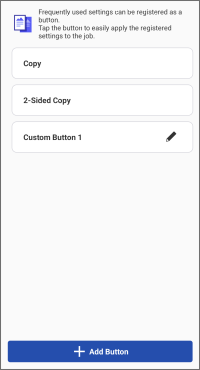
1. In the menu area of the home screen, tap [Copy] (or the same button inside [ ] (Functions)).
] (Functions)).2. Tap [Copy] (1-sided copy) or [2-Sided Copy].
3. Enter the number of copies in [Number of Copies].
Tap and change the settings as required.
To select the paper to copy on, select the paper source in [Select Paper].
4. Place the originals on the printer.
5. Tap [Start] in this app.
The job may be canceled if you place the originals after tapping [Start].
NOTEIn either of the following cases, copying is not supported. To perform copying, change the paper source in [Select Paper] to an available paper source.
When a printer with a maximum paper width of A4/LTR is selected and [Select Paper] > [Auto] is set
When a paper drawer not attached to the printer is selected in [Select Paper]
Execute a Scan and Send by E-mail Job
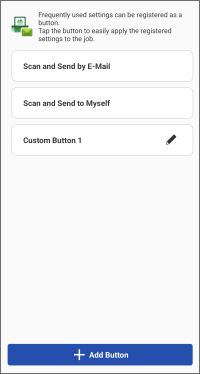
To send scanned data to your own e-mail address, configure the following setting.
Home screen > [] (Menu) > [App Settings] > [Send To]
] (Menu) > [App Settings] > [Send To]Procedures
1. In the menu area of the home screen, tap [Scan and Send by E-Mail] (or the same button inside [] (Functions)).
] (Functions)).2. Perform the required operations for the destination.
To send to a specified destination
(1) Tap [Scan and Send by E-Mail].
To change the scan settings, tap [Detailed Settings].
(2) Enter the destination, subject name, and text.
You can also tap [+] to open the address book of the smartphone and specify a destination.
To send to yourself
(1) Tap [Scan and Send to Myself].
To change the scan settings, tap [Detailed Settings].
(2) Enter the subject name and text.
3. Place the originals on the printer.
4. Tap [Start] in this app.
The job may be canceled if you place the originals after tapping [Start].
5. Confirm the destination on the displayed screen, then tap [OK].
NOTEThis app may not be able to browse addresses, depending on the address book app you are using. If this happens, use a different address book app.
Execute a Fax Job
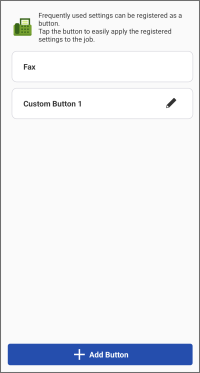
If you enable the following setting, you can display a field for confirming the entered fax number when manually entering the fax destination.
Home screen > [] (Menu) > [App Settings] > [Confirm Entered Fax Number]
] (Menu) > [App Settings] > [Confirm Entered Fax Number]Procedures
1. In the menu area of the home screen, tap [Fax] (or the same button inside [] (Functions)).
] (Functions)).2. Tap [Fax].
3. Enter the destination.
To enter a star (*), pound (#), or comma (,) (pause), tap the [Fax Number] entry area, then tap the following numeric keys.
For Android: [*#]
For iOS: [+*#]
You can also tap [+] to open the address book of the smartphone and specify a destination.
Tap and change the settings as required.
4. Place the originals on the printer.
5. Tap [Start] in this app.
The job may be canceled if you place the originals after tapping [Start].
6. Confirm the destination on the displayed screen, then tap [OK].
NOTEThis app may not be able to browse addresses, depending on the address book app you are using. If this happens, use a different address book app.
Register a New Job Button
1. In the menu area of the home screen, tap [Copy], [Scan and Send by E-Mail], or [Fax] (or the same button inside [] (Functions)).
] (Functions)).2. On the displayed screen, tap [Add Button].
3. Specify the settings to register to the button and button name → tap [Store].
To change the settings of a registered button, tap the [ ] on the right of the button.
] on the right of the button.To sort the buttons or delete a button, tap [] or [Edit] on the top right of the screen.
] or [Edit] on the top right of the screen.Operate the Screen of a Printer on the Smartphone
Display the Remote UI of a Printer on the Smartphone
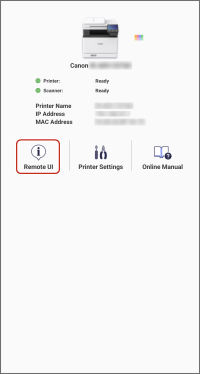 |
Printer Details |
1. On the home screen, tap the icon of the printer to operate.
2. Tap [Remote UI].
To return to this app after displaying the Remote UI, tap the icon of this app again on the home screen of your smartphone.
NOTEIn either of the following cases, perform operations on the control panel of the printer.
If the printer does not support the Remote UI view
If some functions (such as file operations) cannot be used from the Remote UI
Display the Control Panel of a Printer on the Smartphone
You can use this app to display an operation screen equivalent to the control panel of the printer on the smartphone.
This enables you to operate the printer to configure printing settings and execute jobs, etc. without touching the physical control panel.
To display the control panel, enable the remote operation function on the printer side.
Procedures
1. In the menu area of the home screen, tap [Remote Operation] (or the same button inside [] (Functions)).
] (Functions)).If the password entry screen is displayed, enter the password set in the printer, and tap [Log In].
If the Wi-Fi network is disconnected while the password entry screen is displayed, this function may not be able to be used correctly the next time it is started.
2. Tap [Exit] on the top right of the screen to finish performing operations.
Other users cannot operate the same printer while this function is being used. Make sure to tap [Exit] when you are finished.
NOTEThe screen displayed on the smartphone using this function is also displayed on the printer. Take care when using this function, as the screen being operated may be able to be seen by other users.
If a message indicating that the printer cannot connect is displayed when using this function, turn the power of the printer OFF and then ON again, then display the control panel of the printer on the smartphone again.
When turning the printer OFF, refer to the precautions indicated in the manuals provided with the printer.