When you start the computer, log on as an Administrators member.
9870-02X
[Windows] Installing the fax driver (network environment)
Steps for installing the fax driver using the installer are described here.
Step 1 Downloading the fax driver
1
In your browser, open https://global.canon/en/support/.
2
Select your country or region.
3
Click "Support".
4
Open the download page for the driver and download the driver.
Step 2 Installing the fax driver
1
Double-click the downloaded file to decompress it.
The installer starts.
If the installer does not start automatically after the file is decompressed, double-click [Setup.exe].
2
Select a language, and then click [Next].
3
Confirm the content of the CANON SOFTWARE LICENSE AGREEMENT, and then click [Yes].
4
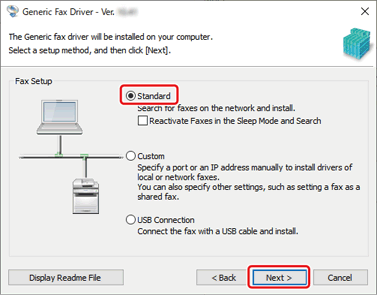
Select [Standard], and then click [Next].
[Reactivate Printers in the Sleep Mode and Search]: Select this when the machine might be in sleep mode.
5
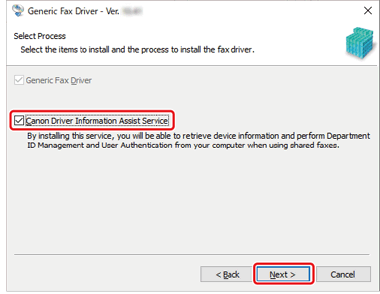
Select [Canon Driver Information Assist Service], and then click [Next].
6
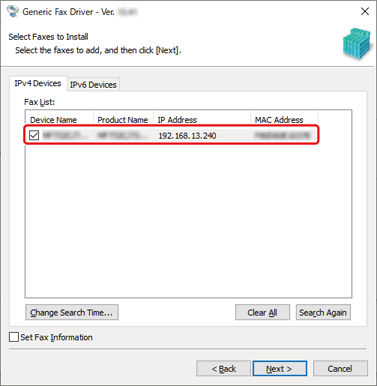
Select the machine in [Fax List].
[IPv4 Devices]/[IPv6 Devices] tab: You can switch displays by clicking the tabs.
If the machine is not displayed in [Fax List], click [Search Again].
NOTE
If you cannot discover the machine connected via a WSD port, there could be a problem with the operating system or device settings. Check that the machine settings, OS network settings, or drivers have been installed, and ensure that the machine is displayed in the search results.
7
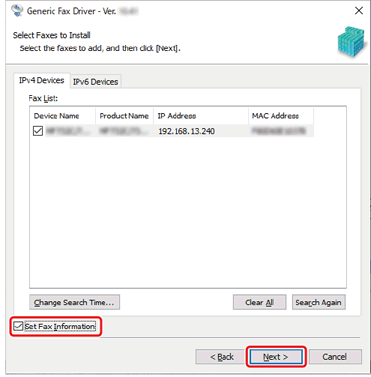
Select [Set Fax Information], and then click [Next].
8
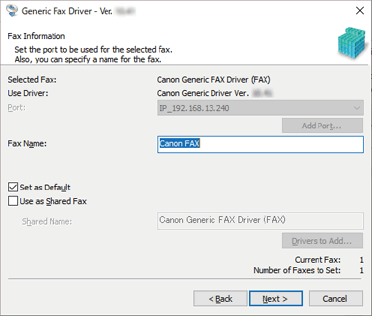
Change the [Fax Name] if necessary, and then click [Next].
[Set as Default]: Select this to set the device as the device that is normally used.
[Use as Shared Fax]: Select this to use the computer with the installed driver as a print server.
You cannot select [Fax Name] if the machine is connected via a WSD port.
9
Check that the machine appears in [Fax List for Driver Installation], and then click [Start].
Install the driver according to the instructions on the screen.
10
Click [Restart] or [Exit].
When the driver is installed correctly, the machine appears in [Devices and Printers] on the Control Panel.