CHYA-017
Printing on Envelopes From the Multi-purpose Tray
This section describes how to correctly load and print on envelopes.
Perform steps 1 to 3 in order.
Step 1: Loading Envelopes Into the Multi-purpose Tray
IMPORTANT
Make sure that the envelope stack does not exceed the load limit line ( ). If the envelopes are not fed properly even if they have been prepared according to the procedures, load the envelopes individually in the multi-purpose tray instead of loading several sheets together.
). If the envelopes are not fed properly even if they have been prepared according to the procedures, load the envelopes individually in the multi-purpose tray instead of loading several sheets together.Do not print on the reverse side of the envelopes (the side with the glued areas).
Before loading the envelopes
Before loading the envelope, carefully prepare them by taking measures such as flattening out any curls. This will prevent paper jams or creasing.
1
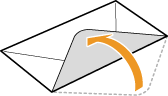
Close the flaps.
2
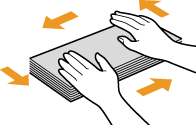
Press down on the envelopes to expel any trapped air and ensure that the edges are neatly folded all round. Then flatten the envelopes out.
3
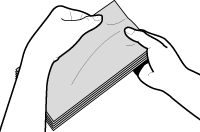
Flatten out any curling so that any stiff corner sections are loosened up.
4
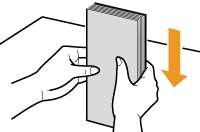
Line up the envelopes on a flat surface.
Yougatanaga 3
1
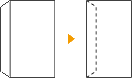
Close the envelope flaps.
2
Load the envelopes with the flap at the back and the front (the side to be printed) downwards.
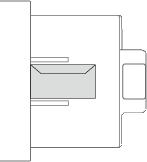
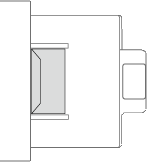
If envelopes become wrinkled, load the envelopes with the long edge of the envelopes facing the machine.
Load the envelopes with the flap to the left and the front (the side to be printed) downwards.
Nagagata 3, Kakugata 2
1
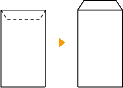
Open the envelope flaps.
2
Load the envelopes with the flap to the right and the front (the side to be printed) downwards.
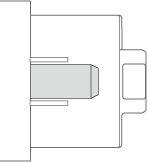
If envelopes become wrinkled, load the envelopes with the long edge of the envelopes facing the machine (Nagagata 3 Only).
Load the envelopes with the flap at the back and the front (the side to be printed) downwards.
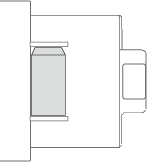
NOTE
When using Kakugata 2, place it horizontally.
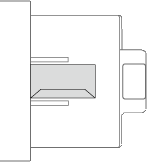
Monarch, COM10 No. 10, DL, ISO-C5
1
Close the envelope flaps.
2
Load the envelopes with the flap to the left and the front (the side to be printed) downwards.
If envelopes become wrinkled, load the envelopes with the long edge of the envelopes facing the machine.
Load the envelopes with the flap at the front and the front (the side to be printed) downwards.
Step 2: Setting the Paper Size and Type
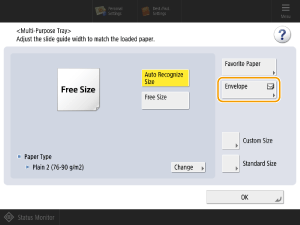
When you load the envelopes in the multi-purpose tray, the screen for setting the paper size appears. Set the paper size as follows.
1
Press <Envelope>.
2
Select the envelope orientation and type and press <OK>.
3
Press <OK>.
Step 3: Printing the Document From Your Computer
The printing procedure differs depending on your computer and its operating system (OS). Print using the correct procedure for your OS.
Windows
1
Select [Print] from the application menu.
2
Select this machine on the Print screen and click [Preferences] or [Properties].
3
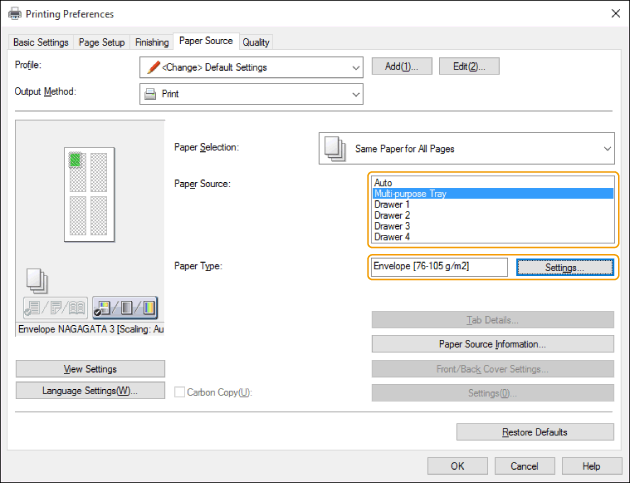
On the printer driver's Print Settings screen, click [Paper Source].
4
In [Paper Source], select [Multi-purpose Tray] and then select [Envelope] in [Paper Type].
5
Click [OK].
6
On the Print screen, click [Print] or [OK].
Mac
The description given here is for macOS 10.15. Screens may differ depending on the OS version.
1
Select [Print] from the application [File] menu.
2
Select this machine in [Printer].
If the print options do not appear, click [Show Details] at the bottom of the dialog box.
3
In [Paper Size], select the size of the envelopes loaded and then select [Envelope] in [Paper Type].
4
Click [Print].