 <Mode A (Prioritize Printer Driver Settings)>.
CHYC-029
Specifying Printer Driver Settings Such as the Paper Size and Type When Printing from the Multi-Purpose Tray
This section describes how to prioritize the printer driver print settings over the machine's settings.
IMPORTANT
Paper jams and/or print defects may occur if the paper size and type specified in the printer driver do not match the size and type of the paper loaded in the multi-purpose tray.
1
Log in as an administrator on this machine's control panel. Logging In as an Administrator
2
On the <Home> screen, press  (Settings/Registration).
(Settings/Registration).3
Press <Function Settings> <Printer>.
<Printer>.4
Specify the multi-purpose tray.
Press <Paper Feed Mode for Printer Driver Jobs with MP Tray> <Mode A (Prioritize Printer Driver Settings)>.
<Mode A (Prioritize Printer Driver Settings)>.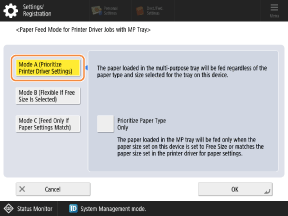
NOTE
When you give priority to the paper settings of the printer driver, priority is given to the paper size and type settings. If you want to give priority only to the paper type, select <Prioritize Paper Type Only> in <Mode A (Prioritize Printer Driver Settings)>.
If the conditions listed below are met, you can change the size and type of paper supplied from the multi-purpose tray by pressing <Temp. Change Ppr. in MP Tray> in the <Copy> and <Access Stored Files> paper selection screens.
Paper is loaded in the multi-purpose tray.
<Mode A (Prioritize Printer Driver Settings)> is specified in this setting.
<Multi-Purpose Tray Defaults> is set to <Fixed>.
When Free Size is specified in <Mode A (Prioritize Printer Driver Settings)>, note the following:
When printing on envelopes, you must specify the paper type in the printer driver. Failing to do so may result in the envelopes not being printed.
When printing on other paper, paper jams or printing errors may occur if you do not specify the paper type.
5
Press <OK>.
6
Press <Close>.
Hiding the paper size and type confirmation screen shown when paper is loaded into the multi-purpose tray
1
Log in as an administrator on this machine's control panel. Logging In as an Administrator
2
On the <Home> screen, press (Settings/Registration).
(Settings/Registration).3
Press <Preferences> <Paper Settings> <Multi-Purpose Tray Defaults>.
<Paper Settings> <Multi-Purpose Tray Defaults>.4
Press <Fixed> <Register>.
<Register>.5
Press <Free Size> <Next>.
<Next>.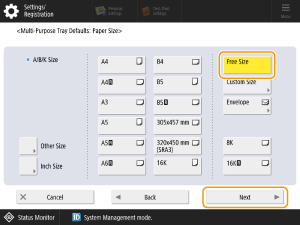
NOTE
Depending on your model, <Free Size> may not be selectable. In this case, select an existing paper size, such as <A4> or <LTR>.
6
Select the paper type and press <OK>.
7
Press <OK>.
8
Press <Close>.