CHYC-02K
Printing Custom Size Paper from the Multi-Purpose Tray (Windows)
This section describes how to print on custom size paper from the multi-purpose tray.
Perform steps 1 to 2 in order.
IMPORTANT
If the paper size and type specified in the printer driver do not match the paper size and type loaded in the multi-purpose tray, a paper jam or printing defect may occur.
Step 1: Prepare the Machine for Printing
1
Load the paper in the multi-purpose tray.
When you load paper into the multi-purpose tray, the screen for setting the paper size and type appears.
2
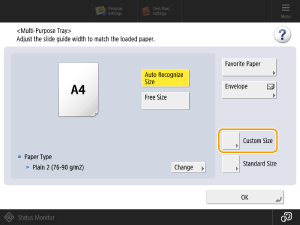
Press <Custom Size>.
3
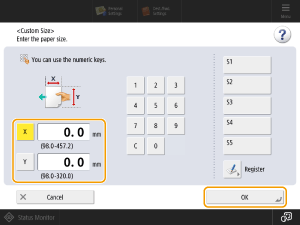
Specify the length of the <X> side and <Y> side, and press <OK>.
Press <X> or <Y> to enter the length of each side using the numeric keys.
4
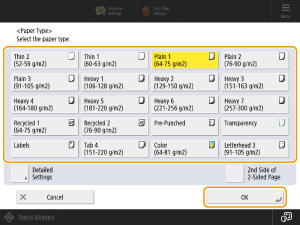
Press <Change> in <Paper Type>.
5
Select the paper type and press <OK>.
Step 2: Printing From a Computer
1
Register the custom size paper in the printer driver.
1
Open the [Print Setup] screen in the printer driver for your machine.
To open the screen from [ Start]
  [
[ Settings]
Start] [ Settings]Click [Devices] [Printers & Scanners] Select the machine to be configured [Manage] [Printing Preferences].
[Printers & Scanners] Select the machine to be configured [Manage] [Printing Preferences].To open the screen from [Control Panel]
Click [Devices and Printers] Right click the machine to be configured Click [Printing Preferences].
Right click the machine to be configured Click [Printing Preferences].2
Click [Custom Paper Size] on the [Page Setup] tab.
3
Specify the[Name of Custom Paper Size], [Unit], and [Paper Size] and then click [Register].
Specify the same paper size as the paper loaded in the machine's multi-purpose tray.
4
Click [OK].
2
Open the document to be printed and display the print screen.
3
Select your machine and click [Preferences] or [Properties].
4
In [Page Size], select the paper size registered in step 1.
5
Click the [Paper Source] tab, select [Multi-purpose Tray] in [Paper Source] and then click [OK].
6
Click [Print] or [OK].
Printing starts.