 <On>.
<On>.CHYC-02J
Specifying Printer Driver Settings Such as the Paper Size and Type When Printing from the Multi-Purpose Tray
This section describes how to prioritize the printer driver print settings over the machine's settings.
IMPORTANT
Paper jams and/or print defects may occur if the paper size and type specified in the printer driver do not match the size and type of the paper loaded in the multi-purpose tray.
1
Log in as an administrator on this machine's control panel. Logging In as an Administrator
2
On the <Home> screen, press  (Settings/Registration).
(Settings/Registration).3
Press <Function Settings> <Printer>.
<Printer>.4
Specify the multi-purpose tray.
Press <Prioritize Printer Driver Settings for Jobs with MP Tray> <On>.
<On>.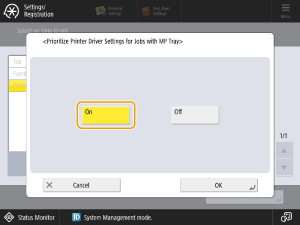
NOTE
If the conditions listed below are met, you can change the size and type of paper supplied from the multi-purpose tray by pressing <Temp. Change Ppr. in MP Tray> in the <Copy> and <Access Stored Files> paper selection screens.
Paper is loaded in the multi-purpose tray.
<On> is specified in this setting.
<Multi-Purpose Tray Defaults> is set to <Fixed>.
5
Press <OK>.
6
Press <Close>.
Hiding the paper size and type confirmation screen shown when paper is loaded into the multi-purpose tray
1
Log in as an administrator on this machine's control panel. Logging In as an Administrator
2
On the <Home> screen, press (Settings/Registration).
(Settings/Registration).3
Press <Preferences> <Paper Settings> <Multi-Purpose Tray Defaults>.
<Paper Settings> <Multi-Purpose Tray Defaults>.4
Press <Fixed> <Register>.
<Register>.5
Press <Free Size> <Next>.
<Next>.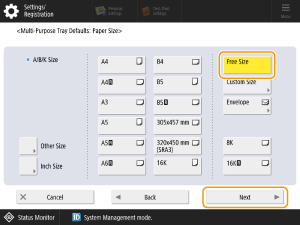
NOTE
Depending on your model, <Free Size> may not be selectable. In this case, select an existing paper size, such as <A4> or <LTR>.
6
Select the paper type and press <OK>.
7
Press <OK>.
8
Press <Close>.