CHYE-008
Forwarding Incoming Fax Documents to an E-Mail Address
This section describes how to forward incoming fax documents to an e-mail address registered in the Address Book.
Perform steps 1 to 2 in order.
This section describes the "procedure for forwarding incoming fax documents to an e-mail address" in the following scenario:
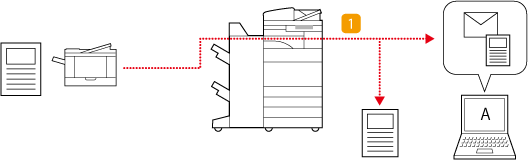
 Forwarding all incoming faxes to "user A's e-mail address" while also outputting them at the same time
Movement of Incoming Fax Documents After the Forwarding Settings Are Configured
NOTE
First check that the following settings have been completed:
That faxes can be used
That the Send functions are enabled
That the network settings have been configured
Screens may differ depending on your model and the installed options.
Step 1: Registering "User A's E-Mail Address" in the Address Book
1
On the <Home> screen, press <Dest./Fwd. Settings>.
2
Press <Register Destinations>  <Register New Destination>.
<Register New Destination>.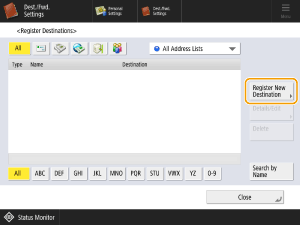
3
Press <E-Mail>.
4
Enter the information for "User A's E-Mail Address."
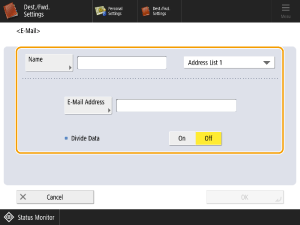
<Name>
Enter the destination name you want to view in the Address Book. Here, "A's e-mail" is entered.
Press <Name> enter the destination name, and then press <OK>.
enter the destination name, and then press <OK>.Where to register destinations
Select a destination from <Personal Address List>, user group address list, <Address List 1> to <Address List 10> or <Address List for Administrator>.
When registering destinations for your own use, select <Personal Address List>.
When registering destinations that only an Administrator can edit, select <Address List for Administrator>.
To share a destination with a registered user group, select the registered user group address list.
NOTE
<Address List 1> to <Address List 10> can be likened to 10 address books. Registering destinations in address lists for each department or business partner makes it easier to find destinations when specifying them. It also makes it easy to manage address lists by simply renaming a department or business partner.
<E-Mail Address>
Enter user A's e-mail address.
<Divide Data>
When the size of a file exceeds the limit for e-mail transmission, you can choose to divide the file based on either size or pages.
When you set this to <On>, the file is divided so that it no longer exceeds the limit and is sent as multiple deliveries. The recipient's e-mail software must support a function for re-joining the received file.
When you set this to <Off>, the number of pages sent each time is reduced and the pages are sent in multiple e-mails. For example, a 10-page file is divided into two and sent as two 5-page files, so the recipient receives two e-mails. However, if the file does not contain any pages (e.g. a JPEG image), a send error occurs.
5
Press <OK> <Close>.
<Close>.NOTE
Before configuring the forwarding settings, use the <Scan and Send> function to check that the file definitely arrived at the registered destination.
Step 2: Configuring the Forwarding Settings for Incoming Fax Documents
1
Log in as an administrator on this machine's control panel. Logging In as an Administrator
2
On the <Home> screen, press  (Settings/Registration).
(Settings/Registration).3
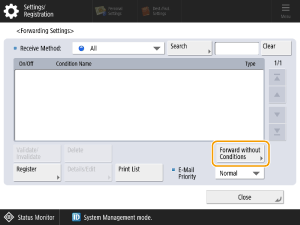
Press <Function Settings> <Receive/Forward> <Common Settings> <Forwarding Settings>.
<Receive/Forward> <Common Settings> <Forwarding Settings>.4
Press <Forward without Conditions>.
NOTE
To forward all incoming fax documents, select <Forward without Conditions>.
5
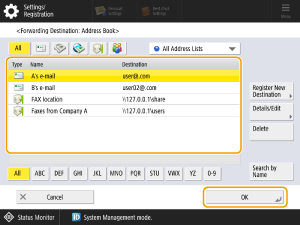
Press <Forwarded To> <Address Book>.
<Address Book>.6
Select the registered e-mail address for user A as the forwarding destination and press <OK>.
7
In <Store/Print Received File>, select <On> and press <OK>.
NOTE
If the Memory Reception setting is <On>, incoming files are saved in the Memory RX Inbox and not printed.
8
Select "Forward without Conditions," press <Validate/Invalidate> and set the forwarding condition to <On>.
All incoming faxes are forwarded to "user A's e-mail address" and output at the same time.
9
Press <Close>.