Setting a License Expiration Date
If you set a license expiration date, Desktop can be used offline until that period has elapsed.
|
IMPORTANT
|
|
If Desktop is used in a virtual environment, operations are not guaranteed when an expiration date is set.
|
|
NOTE
|
|
If a license expiration date is already set, it is updated to the new expiration date.
When an expiration date is set, the license in the local license server is in use until the expiration date elapses, regardless of whether Desktop is actually used.
|
1.
Click the [Start] menu > [All Programs] > [Canon iW] > [iW Desktop] > [iW Desktop License Information Management].
The license information management screen is displayed.
|
NOTE
|
|
For Windows 8, click [iW Desktop License Information Management] on the [Start] screen.
For Windows 8.1, click
 > [iW Desktop License Information Management] on the [Start] screen. > [iW Desktop License Information Management] on the [Start] screen.For Windows 10, select the [Start] menu > [All apps] > [Canon iW] > [iW Desktop License Information Management].
|
2.
Set the expiration date in [Expiration of License] and then click [Acquire].
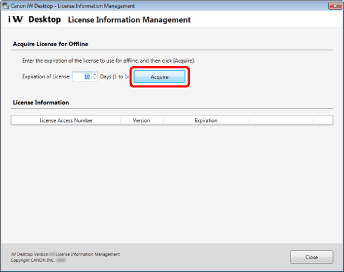
If license authentication is successful, the license expiration date is set, and Desktop can be started offline until the license expiration date elapses.
|
NOTE
|
|
To update the expiration date, enter the new number of days until the license expires. For example, enter "10" if five days remain until the license expires and you want to set the expiration date to 10 days.
When the expiration date elapses, Desktop cannot be used until you acquire a license again by connecting to the local license server where license authentication was performed.
|
3.
Click [Yes].

4.
Click [Close].