Online Authentication
If the local license server is connected to the Internet, perform license authentication by connecting to the Internet. In this case, select [Online Authentication] from the [License Authentication] window.
When online authentication is used, license authentication is completed after you have entered the required information. Licenses can be retrieved from the local license server up to the maximum number of registered licenses.
|
IMPORTANT
|
|
If you are using a proxy server, you cannot perform license authentication online.
|
|
NOTE
|
|
Your server administrator should perform this procedure on the local license server.
|
1.
Execute the "Start-FloatingLicenseInformationManagement.vbs" file in the "LicenseTools" > "<language name>" folder you copied to a local folder of your choice.
Floating License Information Manager is started.
|
NOTE
|
|
Floating License Information Manager can also be started from the Floating License Installation Media. In this case, double-click the "Start-FloatingLicenseInformationManagement.vbs" file in the "LicenseTools" > "<language name>" folder.
|
2.
Click [Acquire] in [Authentication].

3.
Select [Online Authentication] and click [Next].

4.
Enter the License Access Number for Desktop, and click [Next].

|
NOTE
|
|
Enter the License Access Number as 16 (4 groups of 4 characters) alphanumeric characters. The number is not case-sensitive.
Your License Access Number can be found in the material included in the product package of Desktop.
|
5.
Enter the number of Desktop licenses to register in the local license server and click [Next].

6.
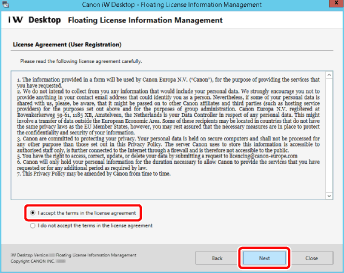
Check the content of the License Agreement (User Registration), select [I accept the terms in the license agreement] if you agree, and then click [Next].
7.
Check the content of the License Agreement (Canon Software Assurance(CSA)). Select [I accept the terms in the license agreement] if you agree, and then click [Next].

8.
Enter the user information, and click [Authentication].

9.
Click [Exit].