Exporting Original Documents
Desktop Editor enables you to export (save) original documents stored in an IWB document.
|
NOTE
|
|
Exporting a document may fail when the free capacity of the target disk is insufficient. When exporting a document with a large file size, be sure to confirm that the target disk has an enough free space remaining in advance.
|
1.
Select the original documents to export from the [Original Documents] tab on the Navigation Window.
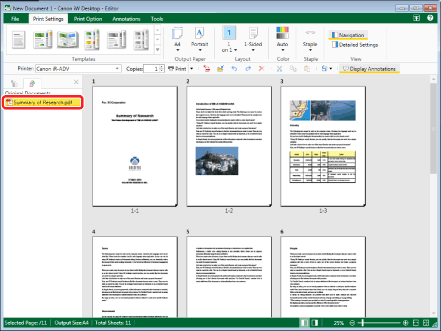
|
NOTE
|
|
If the [Original Documents] tab is not displayed on the Navigation Window, see the following to display it.
|
2.
Click  (Export Original Documents) on the ribbon.
(Export Original Documents) on the ribbon.Or, right-click and select [Export Original Documents].
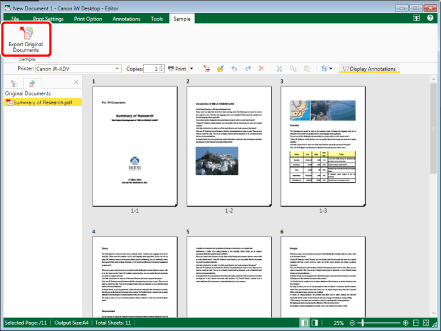
The [Select Export Destination (Original Documents)] dialog box is displayed.
|
NOTE
|
|
If commands are not displayed on the ribbon of Desktop Editor, see the following to display them.
This operation can also be performed with the tool buttons on the toolbar. If tool buttons are not displayed on the toolbar of Desktop Editor, see the following to display them.
|
3.
Select [Library] or [Windows Folder], and click [OK].
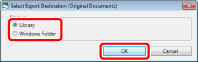
Selecting [Library] displays the [Export Original Documents] dialog box.
Selecting [Windows Folder] displays the [Browse For Folder] dialog box.
4.
Select a library or Windows Folder, then click [OK].
Exporting starts.