Registering a Library
This section describes the Desktop library.
Libraries
A library is a location for storing folders and documents. Libraries are like office cabinets. Folders on computers and shared folders on a network, etc. are registered to libraries. Registering only the folders necessary for your work makes data management easier.
You can register up to 100 libraries.
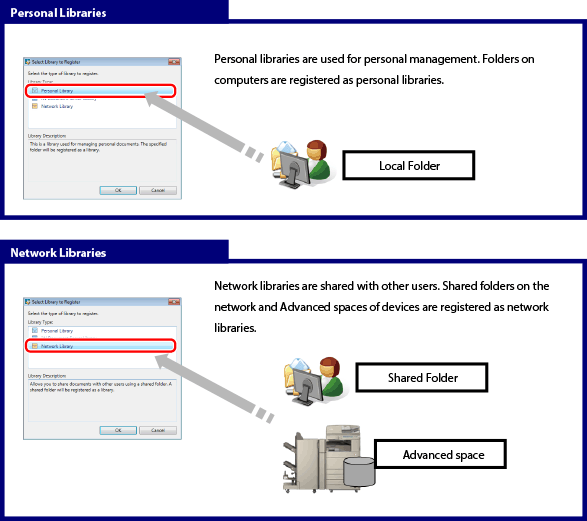
* There are the Document Server Library and DM Data Library as the other types of libraries.
Differences between the Personal Library and Network Library
The functions that can be used with the Personal Library and the Network Library are different.
Register the library that suits your purpose.
|
Personal Libraries
|
Network Libraries
|
|
|
Purpose
|
For personal use only
|
For shared use
|
|
Full-text searches
|
Yes
|
No
|
|
Extended Properties
|
Yes
|
No
|
|
Recycle Bin
|
Yes
|
No
|
* A Network Library is for simple sharing. Therefore, full-text searches and extended properties cannot be used.
Registering a Personal Library
A Personal Library is a library that you use to manage documents on a local computer. If you do not need to share the documents with other users, register the folders on the local computer as a Personal Library.
1.
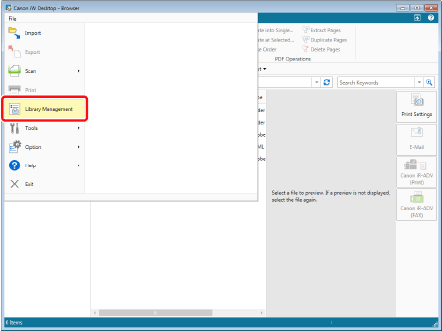
Select the [File] menu > [Library Management].
2.
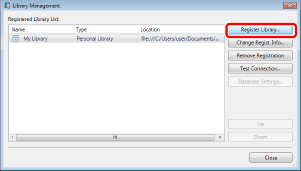
Click [Register Library].
3.
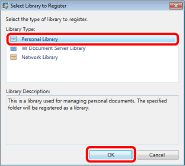
Select [Personal Library] and click [OK].
4.
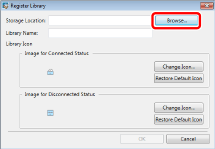
Click [Browse].
5.
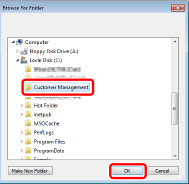
Select the folder to register in the Personal Library and click [OK].
In this example, select the "Customer Management" folder.
6.
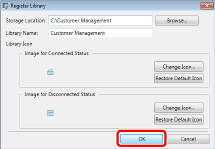
To change [Library Name], set a name of your choice and then click [OK].
|
NOTE
|
|
If a Windows Search confirmation message appears, click [OK].
|
7.
Confirm that the destination has been added to [Registered Library List] and click [Close].
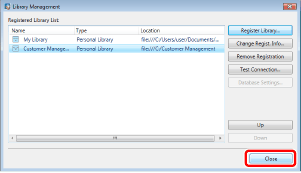
The "Customer Management" folder is registered as a Personal Library.
Registering a Network Library
A Network Library is a folder for managing documents on a network. To share documents with other users, register the folder on the network as a Network Library.
1.
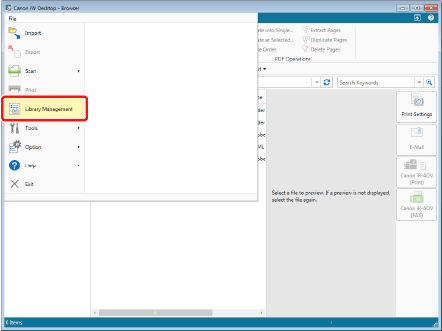
Select the [File] menu > [Library Management].
2.
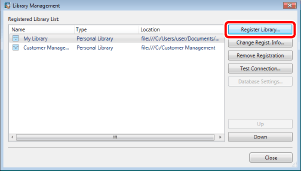
Click [Register Library].
3.
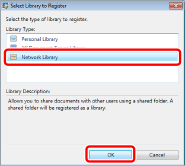
Select [Network Library] and click [OK].
4.
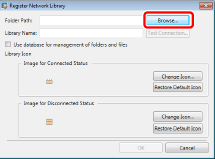
Click [Browse].
5.
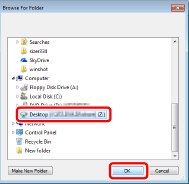
Select a folder to use and click [OK].
6.
To use a database to manage folders and files, select the [Use database for management of folders and files] check box.
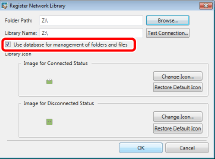
For details on the [Use database for management of folders and files] check box, see the "User's Guide".
7.
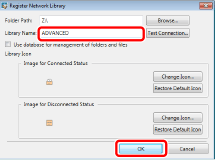
To change the library name, set a name of your choice and click [OK].
8.
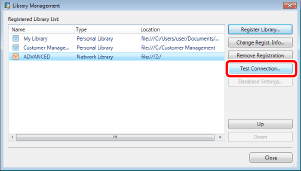
Test the connection to the registered library.
|
NOTE
|
|
If the [Connect to Library] dialog box or the dialog box for authentication is displayed, enter [User Name] and [Password], and click [OK].
|
9.
Click [Close].
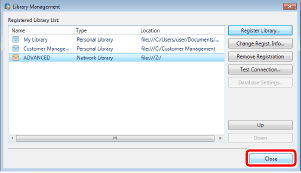
The shared folder on the network is registered as a Network Library.