Registering Buttons in the Output Bar
By registering buttons in the output bar on the Desktop Browser screen, you can easily print documents or send faxes from Desktop. You can also register buttons to start external applications or register copy/move destination folders on buttons.
This section describes how to register buttons. You can change the settings of the registered buttons. For information on the advanced button settings, see the "User's Guide".
Registering Printer Output Buttons
Register a device registered on a computer as a printer output button.
1.
Select the [File] menu > [Tools] > [Create Output Bar Button] > [Printer].
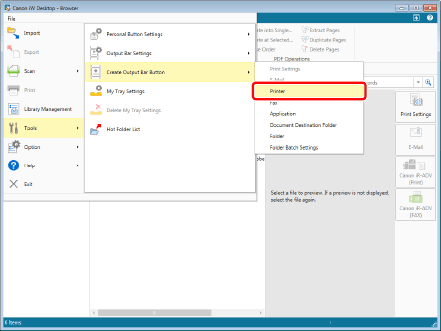
The [Printer Settings] dialog box is displayed.
2.
Select the printer driver you want to use in [Select Printer].

3.
Click [OK].
The printer output button is registered in the output bar.
Registering Fax Output Buttons
Register a fax registered on a computer as a fax output button.
1.
Select the [File] menu > [Tools] > [Create Output Bar Button] > [Fax].
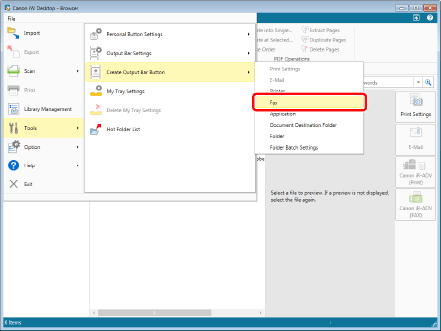
The [Fax Settings] dialog box is displayed.
2.
Select the fax driver you want to use in [Select Fax].

3.
Click [OK].
The fax output button is registered in the output bar.
Registering Application Output Buttons
Register an external application installed on a computer as an application output button.
1.
Select the [File] menu > [Tools] > [Create Output Bar Button] > [Application].

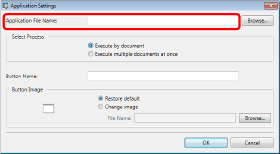
The [Application Settings] dialog box is displayed.
2.
Click [Browse] in [Application File Name], and select the application you want to use.
3.
Click [OK].
The application output button is registered in the output bar.
Registering Copy/Move Destination Folders
Registering the destination folder facilitates easy copying and moving of a document. Create a library or folder to copy/move the document to in advance.
In this example, register "Destination" folder as the document copy/move destination.
1.
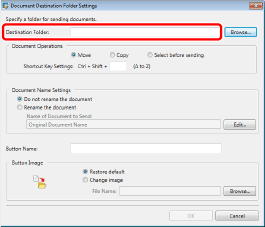
Select the [File] menu > [Tools] > [Create Output Bar Button] > [Document Destination Folder].
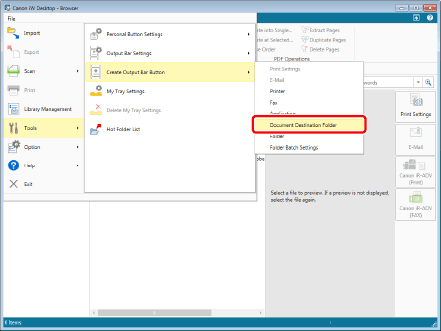
The [Document Destination Folder Settings] dialog box is displayed.
2.
Click [Browse] in [Destination Folder], and select the copy/destination folder.
3.
Click [OK].
The document destination folder button is registered in the output bar.