Creating and Saving IWB Documents
Documents in different file formats can be combined as a single document. This combined document is called an IWB document. Because you can save the configured print settings together with documents, it is unnecessary to specify the print settings every time.
Creating IWB Documents Using Desktop Browser
Create IWB documents using Desktop Browser.
1.
In Desktop Browser, select the documents to be converted into an IWB document, and click  (Print Settings).
(Print Settings).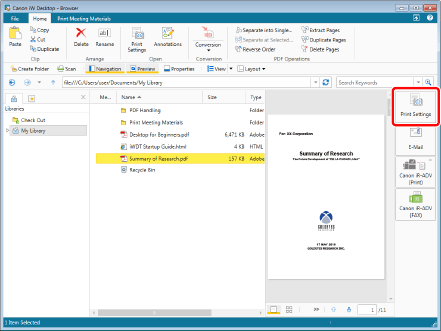
2.
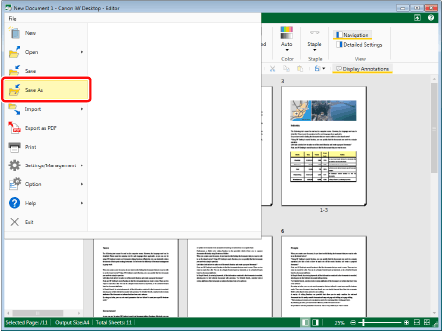
Select the [File] menu > [Save As].
3.
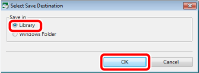
Select [Library] as the destination, and then click [OK].
4.
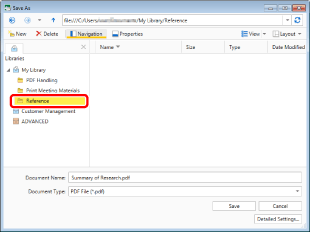
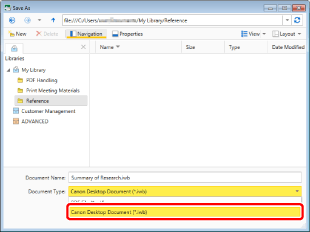
Select a folder in a library to save the document.
5.
Select [Document Type] > [Canon Desktop Document (*.iwb)].
6.
Click [Save].
The document is saved to the destination folder.
Creating IWB Documents by Dragging and Dropping onto Desktop Editor
You can create an IWB document by dragging and dropping onto Desktop Editor.
1.
Select the [Start] menu > [All Programs] > [Canon iW] > [iW Desktop] > [iW Desktop Editor].
Double-click the shortcut icon for [iW Desktop Editor] on the desktop of Windows.
|
NOTE
|
|
For Windows 8/Windows 8.1, click the [iW Desktop Editor] tile from the [Start] screen. The screen switches to the desktop, and Desktop Editor starts.
|
Desktop Editor is started.
2.
Select the documents to import in Windows and then drag and drop them to the Work Window in Desktop Editor.
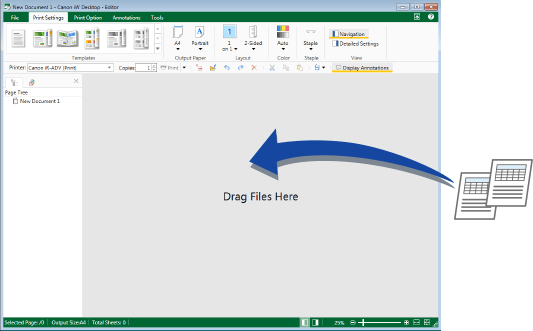
The documents are imported to Desktop Editor.
|
NOTE
|
|
Documents can also be imported by dragging and dropping them to the Navigation Window.
Chapters are created when the documents are imported. The file names of the imported documents are used for the chapter names.
Documents can also be dragged and dropped to a shortcut icon in iW Desktop Editor.
|
Creating IWB Documents from an Application
You can import Web pages or selected pages of a file into an IWB document and print.
1.
Open the document you want to import and then display the Print screen.
2.
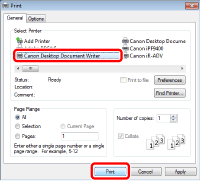
Select [Canon Desktop Document Writer] as the printer to use, and click [Print].
3.
Select [Convert to an IWB document, and open with Editor] and click [OK].

|
NOTE
|
|
You can select the Canon Desktop Document Writer process in the [Import] settings in the system settings. A dialog box for selecting the process is displayed only when [Select process when importing] is selected.
 |