Printing
Desktop Editor can be used to specify unique settings by chapter or page, set page numbers, and create a table of contents, etc. It is easy to combine documents as an IWB document with a consistent structure, which makes office work more efficient.
This section describes the settings of an IWB document.
Specifying Print Settings
With Desktop Editor, specify print settings for IWB documents.
This example describes the methods for specifying the following print settings.
Page Layout (Specifying Settings by Chapter)
Color Mode Settings (Black & White)
Header/Footer
Page Layout (Specifying Settings by Chapter)
In an A4 document composed of two chapters, specify the settings to print two pages per sheet of paper for chapter 2 only.
1.
Click the [Print Option] tab.
2.
Select the second chapter to configure in the Navigation Window, and click  (Chapter Settings) on the ribbon.
(Chapter Settings) on the ribbon.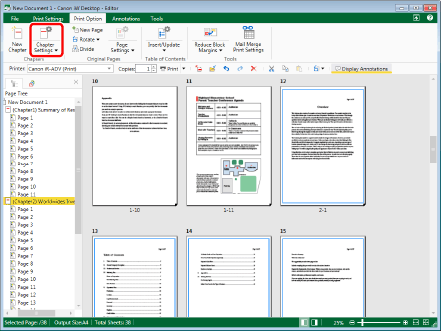
3.
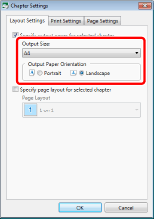
Select the [Specify output paper for selected chapter] check box.

4.
Select [A4] in [Output Size], and [Landscape] in [Output Paper Orientation].
5.
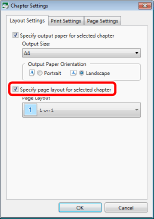
Select the [Specify page layout for selected chapter] check box.
6.
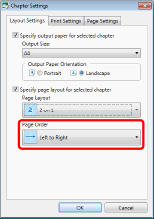
Select [Page Layout] > [2 on 1].

7.
Select [Page Order] > [Left to Right].
|
NOTE
|
|
If 1-sided printing is configured for the entire document but the following print settings and paper settings are not configured, you can configure the different output paper size only for the specified chapter.
Staple
Hole punch
Cover
Back Cover
Inserted Sheet
Tab Paper
|
8.
Click [OK].
9.
Confirm that the chapter settings have been specified.

Color Mode Settings (Black & White)
Set the color mode to black and white.
Select [Black & White] in [Detailed Settings for Printing] on the [Print Settings] tab of the Details Window.

Header/Footer Settings
Set to insert a chapter name in the header of the page to print.
1.
On the [Page Settings] tab in the Details Window, select the [Insert Header/Footer into Print Pages] check box.

2.
Select [Chapter Name] in the header.

3.
Click [Detailed Settings].

4.
Specify the advanced settings and then click [OK].

5.
Confirm that the chapter name has been set.
Printing from Desktop Browser
You can use the printer output buttons registered in the output bar on Desktop Browser to print a document using a Desktop Editor template. You can also print multiple documents together.
In this example, multiple documents are printed together.
1.
Select a document to print, and click the printer output button.

|
NOTE
|
|
With [Print/Fax] in [System Settings], you can configure whether you print annotations saved in the document. If [Display print/send fax dialog] check box is selected, the dialog box for selecting whether to print annotations is displayed.
|
2.
Change the order to print and then click [OK].

The document is printed in the selected order.
|
NOTE
|
|
If [Check preview with Editor before printing] was selected in the printer output button settings, Desktop Editor starts.
|
Printing from Desktop Editor
Desktop Editor enables you to print IWB documents.  (Print) is useful when printing one copy of all pages.
(Print) is useful when printing one copy of all pages.This section describes how to print with the printer and number of copies specified.
1.
Open the document to print in Desktop Editor.
2.
Select the printer to use.

3.
If a confirmation message appears, click [Yes].

4.
Set [Copies] and click (Print).
(Print).
The selected number of copies are printed.
|
NOTE
|
|
If the [Display print/send fax dialog] check box is selected in the system settings, the [Print] dialog box is displayed.
|