Useful Functions of Quick Printing Tool
Quick Printing Tool has the following convenient functions:
1. Specifying the output destination when performing PDF conversion (automatically opening the destination folder)
2. Changing the transparency of the Quick Printing Tool
3. Setting the keys used when dragging documents
Specifying the Output Destination when Performing PDF Conversion
1.
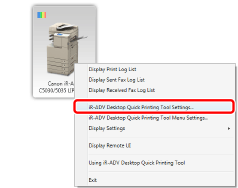
Right-click the Quick Printing Tool and select [iR-ADV Desktop Quick Printing Tool Settings].
2.
Select the destination folder in the [Other] tab > [PDF Conversion].
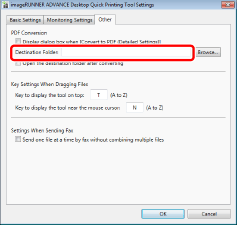
Select [Open the destination folder after converting] to open the destination folder when the conversion is complete.
Changing the Transparency of the Quick Printing Tool
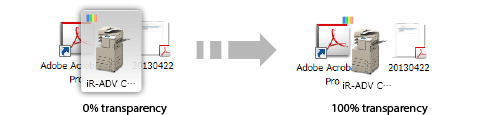
When files and folders are covered by the Quick Printing Tool and cannot be seen, you can change the transparency of the Quick Printing Tool to view them. Transparency can be changed by right-clicking on the Quick Printing Tool and changing the settings in [Background Transparency] in the Basic Settings tab of [iR-ADV Desktop Quick Printing Tool Settings].
Setting the Keys Used when Dragging Documents
Displaying the Quick Printing Tool at the Front
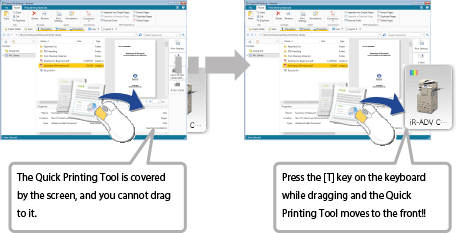
Displaying the Quick Printing Tool Near the Mouse Cursor
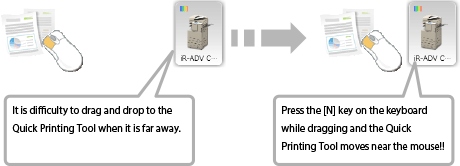
Procedure for Changing the Keys
The keys for displaying the Quick Printing Tool at the front or near the mouse cursor can be changed by right-clicking on the Quick Printing Tool and changing the settings in [Key Settings When Dragging Files] in the [Other] tab of [iR-ADV Desktop Quick Printing Tool Settings].