Configuring Device and Job Monitoring Settings
With Desktop, you can monitor the status of a device or a job by using the Printer Monitor function. Enable the monitoring function to check the status of a device or a job on a computer. You can check the notifications with the output button or icon on the taskbar.
Printer Monitor also enables you to monitor the status of print jobs, and manage print logs and fax transmission/reception logs.

|
NOTE
|
|
Follow the steps below to display the Printer Monitor and Document Monitor icons in the taskbar area.
1. Open [Control Panel].
2. Select [View by] > [Small icons].
3. Select [Notification Area Icons].
4. For imageRUNNER ADVANCE Desktop - Document Monitor (iR-ADV Desktop Document Monitor) and imageRUNNER ADVANCE Desktop - Printer Monitor (iR-ADV Desktop Printer Monitor), set [Show icon and notifications], then click [OK].
For Windows Vista
1. Open [Control Panel].
2. Switch to Classic View.
3. Double-click Taskbar and Start Menu.
4. Click [Customize] in the taskbar tab. (For Windows Vista, click [Customize] in the Notification area tab.)
5. For imageRUNNER ADVANCE Desktop - Document Monitor (iR-ADV Desktop Document Monitor) and imageRUNNER ADVANCE Desktop - Printer Monitor (iR-ADV Desktop Printer Monitor), set [Always show], then click [OK] twice.
|
Monitoring Preparation
To monitor the status of a printer and its printer/fax jobs using Desktop Browser or Printer Monitor, it is necessary to retrieve the printer information in Desktop Monitor Setup.
Retrieving the Printer Information
1.
Right-click  (Printer Monitor) in the taskbar, and select [Start Monitor Setup].
(Printer Monitor) in the taskbar, and select [Start Monitor Setup].
Printer information is automatically retrieved.
Monitoring the Device Status
Configure the settings to monitor the status of devices with the printer output button or the icon on the taskbar.
Monitoring Devices with the Printer Output Button
1.
Right-click the printer output button on the output bar and select [Change].

2.
Select the [Display device status] check box, and click [OK].

3.
The status of the printer is monitored.

Monitoring Devices with the taskbar Icon
1.
Right-click (Printer Monitor) in the taskbar, and select [Printer Monitor Tool].
(Printer Monitor) in the taskbar, and select [Printer Monitor Tool].
2.
Confirm that the [Monitor the device status and display using Printer Monitor icon] check box is selected, and click [OK].

3.
Right-click (Printer Monitor) in the taskbar, and select devices to monitor from [Select Printer to Monitor Status of].
(Printer Monitor) in the taskbar, and select devices to monitor from [Select Printer to Monitor Status of].
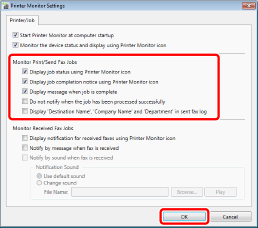
Monitoring Print Jobs/Fax Transmission Jobs
In Desktop, the result of printing/sending faxes can be confirmed on a computer. The icon indicating the progress in the taskbar changes according to the status of the job. Therefore, previously bothersome tasks can be easily performed on a computer, which makes work for printing and sending faxes more efficient.
1.
Right-click (Printer Monitor) in the taskbar, and select [Printer Monitor Tool].
(Printer Monitor) in the taskbar, and select [Printer Monitor Tool].
2.
Select the check box of the following items as necessary, and click [OK].
3.
Right-click the Quick Printing Tool on which devices to monitor are registered, and select [iR-ADV Desktop Quick Printing Tool Settings].

4.
Select the job types to monitor in the [Monitoring Settings] tab, and click [OK].

Monitoring Fax Reception Jobs
Fax reception can be confirmed using the fax reception notification icon and fax reception notification message in the taskbar. Since the display in the taskbar alternates between the fax reception notification icon and the status displayed in the Printer Monitor icon, you can immediately notice when there is a received fax.
1.
Right-click (Printer Monitor) in the taskbar, and select [Printer Monitor Tool].
(Printer Monitor) in the taskbar, and select [Printer Monitor Tool].
2.
Select the check box of the following items as necessary, and click [OK].

3.
Right-click the Quick Printing Tool on which devices to monitor are registered, and select [iR-ADV Desktop Quick Printing Tool Settings].
4.
Select the [Monitor received fax jobs] check box in the [Monitoring Settings] tab, and click [OK].
