Setting User Information to the AMS Printer Driver Add-in
Set user information to the installed AMS Printer Driver Add-in, and retrieve print restriction information.
|
NOTE
|
|
For details on operating the AMS Printer Driver Add-in, see the Help for the AMS Printer Driver Add-in.
If the currently logged in user sets user information in one [AMS] page, that information is applied to all the AMS Printer Driver Add-ins that the user uses on that computer.
|
1.
Log on to the computer in which the AMS Printer Driver Add-in is installed.
2.
Display the properties of the printer that use the printer driver in which the AMS Printer Driver Add-in is installed.
For Windows Server 2003:
Select [Start] - [Printers and Faxes].
Right-click the printer icon, and select [Properties].
For Windows Vista/Windows Server 2008:
Select [Start] - [Control Panel] - [Hardware and Sound] - [Printers].
Right-click the printer icon, and select [Properties].
For Windows Server 2008 R2:
Select [Start] - [Control Panel] - [Hardware] - [Devices and Printers].
Right-click the printer icon, and select [Properties].
For Windows 7:
Select [Start] - [Control Panel] - [Hardware and Sound] - [Devices and Printers].
Right-click the printer icon, and select [Printer properties].
For Windows 8/Windows Server 2012:
Move to the desktop and display the charm bar to the right of the screen.
Select [Settings] - [Control Panel] - [View devices and printers].
Right-click the printer icon, and select [Printer properties].
3.
Click the [AMS] tab.
4.
Click [User Name/Password].
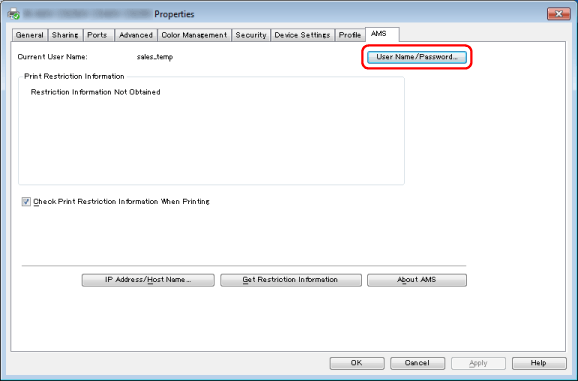
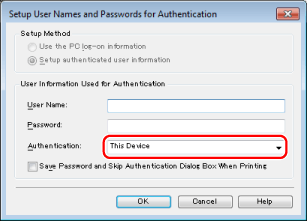
The [Setup User Names and Passwords for Authentication] dialog box is displayed.
5.
Confirm that [This Device] is selected for [Authentication] → specify [User Name] and [Password].
Contact the administrator in charge of usage restrictions for information on the user information to use for authentication.
|
NOTE
|
|
If you select [Save password and skip authentication dialog box when printing], you can print without entering passwords. However, it is recommended you set to enter a password each time printing is performed, for increased security. [Save password and skip authentication dialog box when printing] is enabled if you select [Save user authentication information] in [Printer Driver Management] when specifying the preferences of the devices. For more information, "Specifying the Preferences of the Devices."
When you print from the Windows Store app in Windows 8/Server 2012, if you have configured the settings so that you are required to enter a password when printing, the message "The printer requires your attention. Go to the desktop to take care of it." is displayed. If this happens, move to the desktop and follow the instructions in the displayed dialog box.
Note that the message will disappear after a while, but printing will not start until you have moved to the desktop and performed the operation displayed in the dialog box. |
6.
Click [OK].
The print restriction information is retrieved.
|
IMPORTANT
|
|
To retrieve print restriction information (role information etc.), the information must be registered in the device. For more information, "Setting Up the Access Management System" or "Operation Example of Local Device Authentication."
To change the IP address/host name of the device specified when installing the AMS Printer Driver Add-in, click [IP Address/Host Name].
|
|
NOTE
|
|
If you select [Check Print Restriction Information When Printing] on the [AMS] page, the [Confirmation of Print Restrictions] dialog box is displayed each time printing is performed, enabling you to check the print restriction information.
When you print from the Windows Store app in Windows 8/Server 2012, if you have configured the settings so that you are required to confirm print restriction information when printing, the message "The printer requires your attention. Go to the desktop to take care of it." is displayed. If this happens, move to the desktop and follow the instructions in the displayed dialog box.
Note that the message will disappear after a while, but printing will not start until you have moved to the desktop and performed the operation displayed in the dialog box. |
7.
Click [OK] to close the dialog box.
|
IMPORTANT
|
|
If the print restriction information registered in the device is changed, click [Get Restriction Information] on the [AMS] page to retrieve the latest print restriction information. If the print restriction information registered in the device and the print restriction information in the AMS Printer Driver Add-in differ, an error will occur. Take care, as documents for which printing is only allowed once will become unable to be printed.
|