Registering/Editing/Deleting Destinations for Group Dialing
You can perform the following tasks:
Register group addresses
Add destinations to a group
Delete destinations from a group
Change the group's name
Delete a group
|
IMPORTANT
|
Before registering group addresses:Register group addresses in unused one-touch keys or coded dialing codes. Make sure that you leave some unused one-touch keys or coded dialing codes unused for group dialing.
Destinations must be registered in one-touch keys or coded dialing codes before they are added to a group.
|
1
Press [ ] (FAX/COPY) to switch to the Fax mode screen.
] (FAX/COPY) to switch to the Fax mode screen.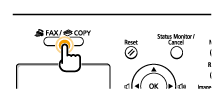
2
Press [ ] (Address Book).
] (Address Book).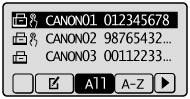
To register a new group address:
|
(1)
|
Press [
 ]. ]. |
||||
|
(2)
|
Press [
 ] or [ ] or [ ] to highlight <Register New Destination to Address Book>, and then press [OK]. ] to highlight <Register New Destination to Address Book>, and then press [OK].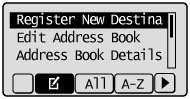
|
||||
|
(3)
|
Press [
] or [] to highlight <One-Touch> or <Coded Dial>, and then press [OK].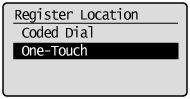 |
||||
|
(4)
|
Press [
] or [] to highlight <Group>, and then press [OK].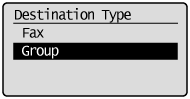 |
||||
|
(5)
|
If you selected <One-Touch> in Step (3), press [
] or [] to highlight an empty one-touch key, and then press [OK].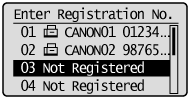 |
||||
|
(6)
|
Press [
] or [] to highlight <Name>, and then press [OK].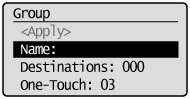 |
||||
|
(7)
|
Use the numeric keys to specify <Name>.
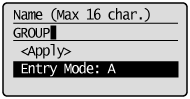 |
||||
|
(8)
|
Press [
] or [] to highlight <Apply>, and then press [OK].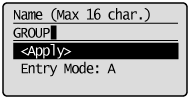 |
||||
|
(9)
|
Press [
] or [] to highlight <Destinations>, and then press [OK].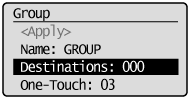 |
||||
|
(10)
|
Press [
] or [] to highlight <Add>, and then press [OK].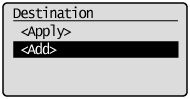 |
||||
|
(11)
|
Press [
] or [] to highlight the destination that you want to add, and then press [OK].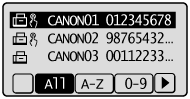 |
||||
|
(12)
|
Repeat steps (10) and (11) to select more destinations to be added.
|
||||
|
(13)
|
Press [
] or [] to highlight <Apply>, and then press [OK]. |
||||
|
(14)
|
Press [
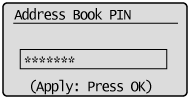
] or [] to highlight <Apply>, and then press [OK].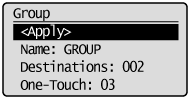 |
To add destinations to a group:
|
(1)
|
Press [
]. |
||||
|
(2)
|
Press [
] or [] to highlight <Edit Address Book>, and then press [OK].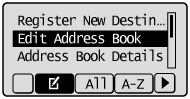
|
||||
|
(3)
|
Press [
] or [] to highlight the group to be edited, and then press [OK].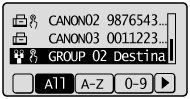 |
||||
|
(4)
|
Press [
] or [] to highlight <Destinations>, and then press [OK].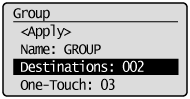 |
||||
|
(5)
|
Press [
] or [] to highlight <Add>, and then press [OK].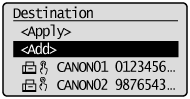 |
||||
|
(6)
|
Press [
] or [] to highlight the destination you want to add to the group, and then press [OK].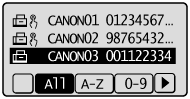 |
||||
|
(7)
|
Press [
] or [] to highlight <Apply>, and then press [OK].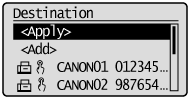 |
||||
|
(8)
|
Press [
] or [] to highlight <Apply>, and then press [OK].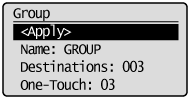 |
To delete a destination from a group:
|
(1)
|
Press [
]. |
||||
|
(2)
|
Press [
] or [] to highlight <Edit Address Book>, and then press [OK].
|
||||
|
(3)
|
Press [
] or [] to highlight the group to be edited, and then press [OK].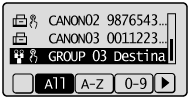 |
||||
|
(4)
|
Press [
] or [] to highlight <Destinations>, and then press [OK].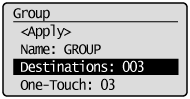 |
||||
|
(5)
|
Press [
] or [] to highlight the destination that you want to delete, and then press [OK].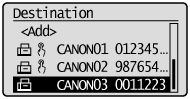 |
||||
|
(6)
|
Press [
] or [] to highlight <Delete From Group>, and then press [OK].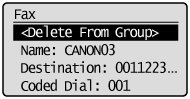 |
||||
|
(7)
|
Press [
] to highlight <Yes>, and then press [OK].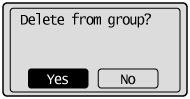 |
||||
|
(8)
|
Press [
] or [] to highlight <Apply>, and then press [OK]. |
||||
|
(9)
|
Press [
] or [] to highlight <Apply>, and then press [OK]. |
To change the name of a group:
|
(1)
|
Press [
]. |
||||
|
(2)
|
Press [
] or [] to highlight <Edit Address Book>, and then press [OK].
|
||||
|
(3)
|
Press [
] or [] to highlight the group to be edited, and then press [OK]. |
||||
|
(4)
|
Press [
] or [] to highlight <Name>, and then press [OK].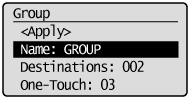 |
||||
|
(5)
|
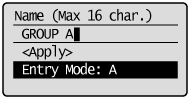
Change the name of the group.
 |
||||
|
(6)
|
Press [
] or [] to highlight <Apply>, and then press [OK].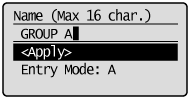 |
||||
|
(7)
|
Press [
] or [] to highlight <Apply>, and then press [OK].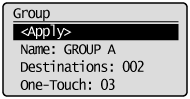 |
To delete a group:
|
(1)
|
Press [
]. |
||||
|
(2)
|
Press [
] or [] to highlight <Delete From Address Book>, and then press [OK].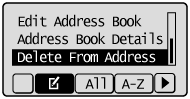
|
||||
|
(3)
|
Press [
] or [] to highlight the group that you want to delete, and then press [OK]. |
||||
|
(4)
|
Press [
] to highlight <Yes>, and then press [OK].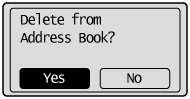 |
3
Press [ ] (Back) to close the Address Book screen.
] (Back) to close the Address Book screen.