Two-Sided Printing
This mode enables you to print two successive pages of a stored file, on both sides of a sheet of paper.
As an example, the procedure for printing files that are stored in memory media is explained in this section.
1.
Press [Access Stored Files] → [Memory Media].

2.
Select the desired memory media → select the location where the file you want to print is stored.

3.
Slect the desired file → press [Print].

4.
Select the paper size → press [OK].
5.
Press [2-Sided Printing].
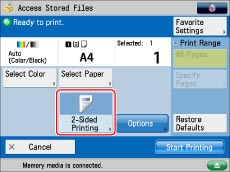
To change the paper source, see "Paper Selection."
6.
Select the type of finishing → press [OK].
|
[Long Edge]:
|
Uses the long edge of the paper as the binding location for the back and front sides.
|
|
[Short Edge]:
|
Uses the short edge of the paper as the binding location for the back and front sides.
|
7.
Press [Start Printing].
|
IMPORTANT
|
|
For information on the modes which cannot be set in combination with this mode, see "Unavailable Combination of Functions."
You may not be able to print, depending on the paper type.
|
|
NOTE
|
|
Paper used to make two-sided prints must conform to the following specifications:
Paper size: A3, A4, A4R, or A5R (envelopes cannot be used for two-sided printing)
Paper weight: 60 to 120 g/m2
If there are an odd number of pages in the file, the back side of the last print is left blank. (The machine's counter does not count the blank page as a print.)
|