Registering Destinations in the Address Book
Destinations can be edited or deleted after they have been registered. You can register up to 200 destinations in the Address Book.
1
Press  or
or  .
.
or .2
Press  .
.
.3
Press <Register Dest.>.
If a screen appears prompting you to enter a PIN, enter the correct PIN using the numeric keys, and press  . Setting a PIN for Address Book
. Setting a PIN for Address Book4
Use  /
/ to select <Coded Dial>, and press .
/ to select <Coded Dial>, and press .5
Select <Fax> or <E-Mail>, and press .
.Press <Fax> when registering a fax number, and press <E-Mail> when registering an e-mail address.
The types of destinations that can be selected vary depending on the machine model.
 Registering destinations with the LDAP server
NOTE:
If your office has an LDAP server installed, you can register destinations searched from the server in the Address Book. You need to specify the settings for connecting to an LDAP server beforehand.
Registering LDAP Servers
Registering LDAP Servers
|
1
|
Press <LDAP Server>.
|
|
2
|
Search for the destination to register.
See steps 3 to 8 on Specifying Destinations in an LDAP Server (Fax) for the procedure.
According to the content registered in the LDAP server, the user name and the fax number/e-mail address of the specified destination that is registered on the LDAP server will be automatically input.
|
|
3
|
Select a destination, and press
. |
|
4
|
Proceed to step 10.
|
6
Select <Name>, and press .
.Registering <Name> is optional. If you register <Name>, the destination can be searched alphabetically.
7
Enter the name using the numeric keys, and press <Apply>.
8
Select <Fax Number> or <E-Mail Address>, and press .
.9
Enter the number or address using the numeric keys, and press <Apply>.
10
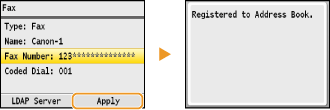
Press <Apply>.
A three-digit number is automatically set to destinations. The number can be edited after it has been registered.
Editing the Content of Registered Destinations
After registering destinations, you can change the content of destinations such as numbers, names, types, and coded dial numbers.
1
Press or .
or .2
Press .
.3
Use  /
/ to select the tab containing the destination you want to edit.
/ to select the tab containing the destination you want to edit.4
Use / to select the destination you want to edit, and press <Details/Edit>.
/ to select the destination you want to edit, and press <Details/Edit>.5
Press <Edit>.
If a screen appears prompting you to enter a PIN, enter the correct PIN using the numeric keys, and press . Setting a PIN for Address Book
. Setting a PIN for Address Book6
Select the item you want to edit, press , perform editing, and then press <Apply>.
, perform editing, and then press <Apply>.7
Press <Apply>.
Deleting a Registered Destination
1
Press or .
or .2
Press .
.3
Use / to select the tab containing the destination you want to delete.
/ to select the tab containing the destination you want to delete.4
Use / to select the destination you want to delete, and press <Details/Edit>.
/ to select the destination you want to delete, and press <Details/Edit>.5
Press <Delete>.
If a screen appears prompting you to enter a PIN, enter the correct PIN using the numeric keys, and press . Setting a PIN for Address Book
. Setting a PIN for Address Book6
Select <Yes>, and press .
.