Displaying a Web Page
Follow the instructions below to start Web Access and display the desired Web page.
1.
Press [Web Access].
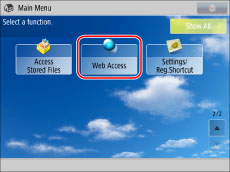
If the desired function is not displayed on the Main Menu screen, press [Show All].
2.
Press the address bar.
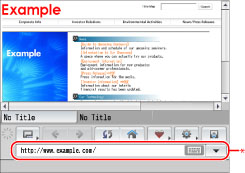
* Address Bar
3.
Enter the URL of the desired Web page → press [OK].
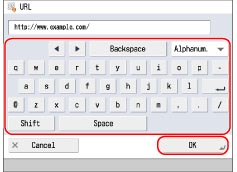
Example: http://www.example.com
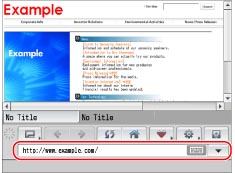
Press  to display the history of entered URLs. You can select a Web page to display from the history. You can delete the history of entered URLs by pressing [Delete All] in [History] (from Menu). (See "Deleting the URL History.")
to display the history of entered URLs. You can select a Web page to display from the history. You can delete the history of entered URLs by pressing [Delete All] in [History] (from Menu). (See "Deleting the URL History.")The desired Web page appears.
|
NOTE
|
|
For instructions on entering characters, see "Entering Characters from the Touch Panel Display."
Depending on the entry area of the Web page, the text field of the keyboard may be displayed with multiple entry lines.
Depending on the size of the Web page or images, the Web page may not be displayed correctly or an error message may appear.
Depending on the image size, it may take some time for GIF animations to load.
If multiple windows are open, the windows are not differentiated, and URLs are saved in the order that they were entered.
|
4.
Make sure you press  (Reset) after you finish using Web Access.
(Reset) after you finish using Web Access. |
IMPORTANT
|
|
When [Initialize All Data/Settings] in [Management Settings](Settings/Registration) is performed, the following registered or saved data is deleted:
Favorites
History Information
Cookies
Settings (restored to their defaults)
For more information on [Initialize All Data/Settings], see "Initializing All Data/Settings."
|
|
NOTE
|
|
The following procedures are performed when you log out:
Cookies are deleted
The session is disconnected
The displayed page is changed to a blank page
|
|
IMPORTANT
|
|
Depending on your system environment, it may be necessary to set proxy settings. For instructions on specifying proxy settings, see "Settings Common to TCP/IPv4 and TCP/IPv6."
|