Specifying Network Settings from the Touch Panel Display

To specify the network settings for the machine, press (Settings/Registration) on the control panel → log in as a user with the required privileges using the touch panel display. For more information, see "Setting Administrators."
Specify the settings in [Network] in [Preferences] to suit your network environment. The following screen shots show the flow of operations for specifying the network settings.
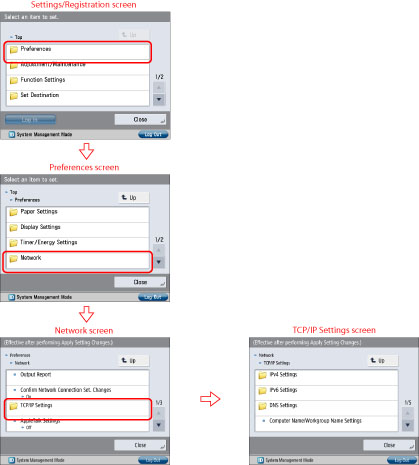
To move up one level, press [Up].

IMPORTANT
Settings specified from the control panel become effective after the machine is restarted, after the procedure. If <Perform Apply Setting Changes from Settings/Regist.> is displayed on the bottom of the touch panel display, you can press [Apply Set. Chng.] in (Settings/Registration) to restart the machine. For information on restarting the machine using the main power switch, see "Main Power and Energy Saver Key."
NOTE
The Administrator is set for the machine by default. Therefore, the administrator must log in by entering the user name and password for the Administrator. The user name of the administrator is 'Administrator' and the password is '7654321'. (Case sensitive.) It is recommended that you change both the System Manager ID and System Manager PIN. For information on administrators, see "Setting Administrators."
12HH-1R4