Setting the Fax Options
Before faxing, you need to set up the fax configuration in order to use the functions of fax options (such as the fax board) attached to the machine.
The fax configuration can be set up automatically while installing the driver. If the machine cannot be configured during the installation, follow the procedure below.
|
IMPORTANT
|
|
To configure the fax option settings, you must log on to your computer as a member of the Administrators group.
|
1.
Click [ ] (Start) → [Devices and Printers].
] (Start) → [Devices and Printers].
|
NOTE
|
|
If you are using Windows 8/8.1/Server 2012/2012 R2, from the desktop, display the charm bar to the right of the screen, and click or tap [
 Settings] → [Control Panel] → [Devices and printers]. Settings] → [Control Panel] → [Devices and printers].For Windows 7/Server 2008 R2, click [
] (Start) → [Control Panel] → [Printer].For Windows XP Professional/Server 2003, click [Start] → [Printers and Faxes].
For Windows XP Home Edition, click [Start] → [Control Panel] → [Printers and Other Hardware] → [Printers and Faxes]. |
2.
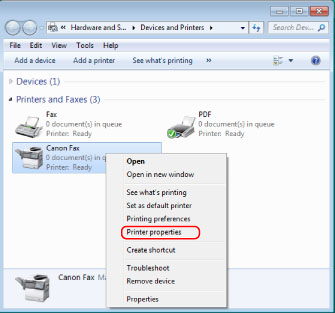
Right-click the icon of the fax whose settings you want to configure → click [Printer properties] (or [Properties]).
3.
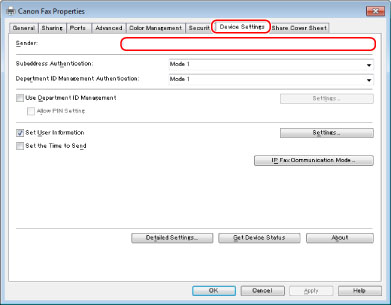
Click [Device Settings] → Specify [Sender].
Enter the sender name you want to display in the header of the fax in [Sender].
4.
Click [Get Device Status].
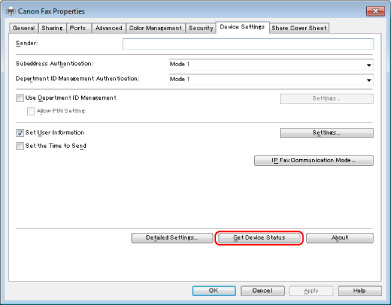
The option information acquired from the device is applied to the following.
[Fax Board Options]
[Set Modem Dial-in]
[Subaddress Authentication]
[Use Department ID Management]
[Department ID Management Authentication]
[Set the Time to Send]
|
NOTE
|
|
Depending on the printer model you are using, some options may not be supported.
|
5.
Click [Detailed Settings]
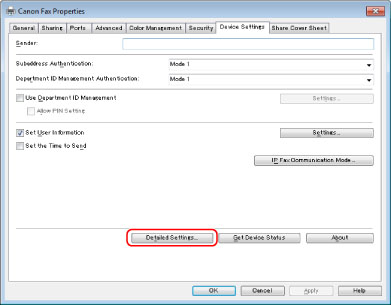
Set the following manually.
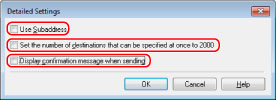
[Use Subaddress]
[Set the number of destinations that can be specified at once to 2000]
[Display confirmation message when sending]
6.
If required, set the user name to be displayed in the sent fax log of the device.
7.
Click [OK].
|
NOTE
|
|
If you are using a shared printer, you need to install Canon Driver Information Assist Service in the print server computer in order to use the [Get Device Status] function. For details about how to install the Canon Driver Information Assist Service, see the "Fax Driver Installation Guide" (see "Installation").
If the information request returns an error message, you need to manually select and configure such settings as optional fax board, memory, etc. installed in the fax you are using.
If the fax and computer are connected via USB or a WSD (Web Services on Devices) port, the [Get Device Status] function is unavailable. You need to configure the settings manually.
The display may vary according to the operating system and fax driver version you are using.
|