Entering Text
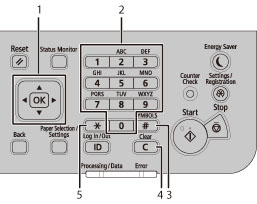
Enter information (text, symbols, and numbers) using the following keys.
 |
|
1.
|
[
 ][ ][ ][ ][ ][ ][ ][OK] Key ][OK] Key |
|
2.
|
Numeric Key
|
|
3.
|
[
 ] Key ] Key |
|
4.
|
[
 ] Key ] Key |
|
5.
|
[
 ] Key ] Key |
Changing the Entry Mode
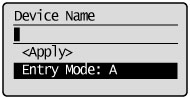
Press [] to highlight <Entry Mode>, and then press [OK].
] to highlight <Entry Mode>, and then press [OK].You can also press [] to change the Entry mode.
] to change the Entry mode.|
Entry Mode
|
Text That Can Be Entered
|
|
<A>
|
Uppercase alphabetic letters and symbols
|
|
<a>
|
Lowercase alphabetic letters and symbols
|
|
<12>
|
Numbers
|
Entering Text, Symbols, and Numbers
Enter text, symbols, and numbers using the numeric keys or press [].
].|
Key
|
Entry mode: <A>
|
Entry mode: <a>
|
Entry mode: <12>
|
 |
@ . - _ /
|
1
|
|
 |
ABC
|
abc
|
2
|
 |
DEF
|
def
|
3
|
 |
GHI
|
ghi
|
4
|
 |
JKL
|
jkl
|
5
|
 |
MNO
|
mno
|
6
|
 |
PQRS
|
pqrs
|
7
|
 |
TUV
|
tuv
|
8
|
 |
WXYZ
|
wxyz
|
9
|
 |
(Not available)
|
0
|
|
|
|
- . * # ! " , ; : ^ ` _ = / | ' ? $ @ % & + \ ( ) [ ] { } < >
|
(Not available)
|
|
Moving the Cursor (Entering a Space)
Move the cursor by pressing [] or [].
] or [].To enter a space, move the cursor to the end of the text, and then press [].
].Deleting Text, Symbols, and Numbers
To delete the text, numbers, and symbols:
Press [] (Clear).
Press [
] (Clear).To delete all text, numbers, and symbols:
Press and hold [] (Clear).
Press and hold [
] (Clear).Example: Enter <CANON>.
|
(1)
|
Make sure that the Entry mode is set to <A>.
|
|
(2)
|
Press [
] until the letter "C" appears on the screen.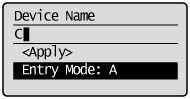 |
|
(3)
|
Press [
] until the letter "A" appears on the screen.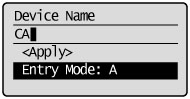 |
|
(4)
|
Press [
] until the letter "N" appears on the screen.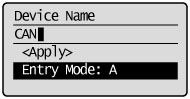 |
|
(5)
|
Press [
] until the letter "O" appears on the screen.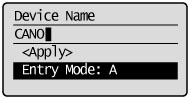 |
|
(6)
|
Press [
] until the letter "N" appears on the screen.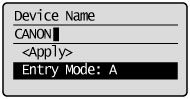 |
|
(7)
|
Press [
] or [] to highlight <Apply>, and then press [OK].The entry is complete. |