Exporting Registered Data
You can export the data registered in the machine to your computer.
1
Start the Remote UI and log on in System Manager Mode. Starting the Remote UI
2
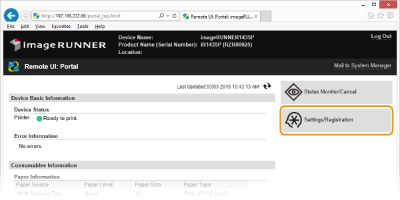
Click [Settings/Registration].
3
Click [Import/Export]  [Export].
[Export].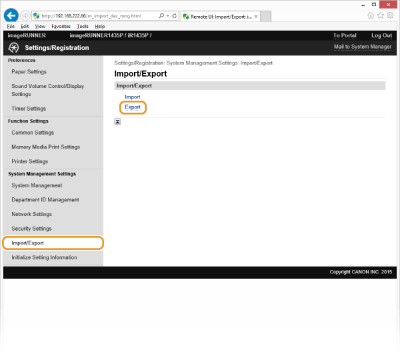
4
Enter the encryption password, and click [Start Exporting].
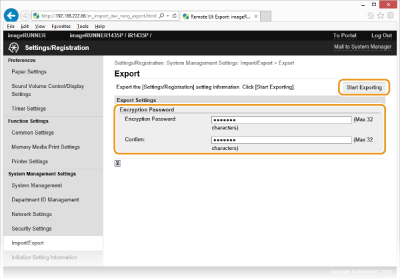
[Encryption Password]
Enter up to 32 alphanumeric characters for the encryption password. For confirmation, enter the same password in the [Confirm:] text box. This password will be required when you import the data to the machine.
5
Follow the on-screen instructions to specify the location where the exported data is saved.
The data is exported to your computer.
IMPORTANT:
Do not operate until the process is complete
Do not operate until the process is complete
During the export process, the screen remains the same or the message indicating that the export is in progress is displayed. Do not operate the Remote UI until the message prompting you to save the exported file is displayed.