Operation Panel
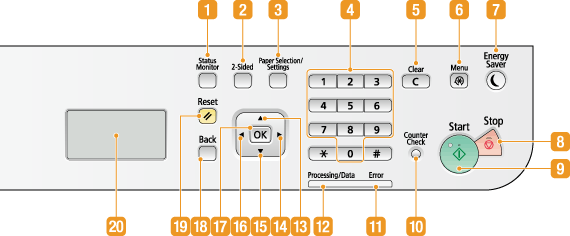
 [Status Monitor] key
Press to check the status of copying and view the usage history. You can also check the status of the machine, such as the remaining amounts of paper and toner, or whether any errors occurred. Display
 [2-Sided]/[2-Sided/ID Card Copy] key
Press to specify the 2-sided copy settings. If your machine has the [2-Sided/ID Card Copy] key, you can also press the key to easily copy ID cards (Copying Both Sides of an ID Card onto One Page).
 [Paper Selection/Settings] key
Press to select the paper you want to use, or to set the size and type of paper loaded in the paper source. Specifying Paper Size and Type
 Numeric keys ([0]-[9] keys)
Press to enter numbers.
 [Clear] key
Press to delete the entered numbers.
 [Menu] key
Press to start specifying many of the settings for the machine, such as <Timer Settings> or <Preferences>. Setting Menu List
 [Energy Saver] key
Press to put the machine into sleep mode. The key lights up yellow green when the machine is in sleep mode. Press the key again to exit sleep mode. Entering Sleep Mode
 [Stop] key
Press to cancel copying and other operations.
 [Start] key
Press to start copying.
 [Counter Check] key
Press to view the counter values as well as the list of the equipment that is attached. Viewing the Counter Value Display
 [Error] indicator
Blinks or lights up when an error such as a paper jam occurs.
 [Processing/Data] indicator
Blinks while operations such as copying is being performed. Lights up when there is data waiting to be processed.
 [
[ ] key
] key
When specifying settings, press to select the item above the currently selected item.
When changing setting values, press to increase a value.
 [
[ ] key
] key
When specifying settings, press to proceed to the next screen.
Press to increase a setting value such as density for copying, etc.
 [
[ ] key
] key
When specifying settings, press to select the item below the currently selected item.
When changing setting values, press to decrease a value.
 [
[ ] key
] key
When specifying settings, press to return to the previous screen.
Press to decrease a setting value such as density for copying, etc.
 [OK] key
Press to apply settings or specified details.
 [Back] key
Press to return to the previous screen. If you press the key when specifying settings, for example, the settings are not applied and the display returns to the previous screen.
 [Reset] key
Press to cancel the settings and restore the previously specified settings.
 Display
Displays the operation and status screens for copying, as well as the status of the machine and error information. Also, view the screen when specifying the settings of the machine. Display