Managing Copy Jobs
This section describes how to cancel copy jobs using  (Stop) and the System Monitor screen, and how to check the details and records of copy jobs using the System Monitor screen.
(Stop) and the System Monitor screen, and how to check the details and records of copy jobs using the System Monitor screen.Canceling a Copy Job Using the Stop Key
You can cancel a copy job by using (Stop).
(Stop).|
NOTE
|
|
Several copies may be output even after you cancel a job.
|
1
Press  (Stop).
(Stop).If the screen returns to the top screen, the copy job is canceled.
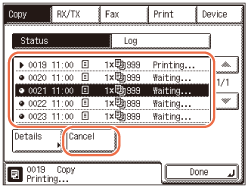
If the Copy Job Status screen below appears:
|
1
|
Select the job you want to cancel → press [Cancel].
 NOTE:
If the Device screen appears, press [Copy] to display the Copy screen shown above.
|
|
2
|
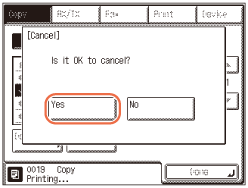
Press [Yes].
 NOTE:
Pressing
(Stop) while the machine is scanning an original placed in the feeder may cause a paper jam. For instructions on how to clear paper jams in the feeder, see Troubleshooting.You cannot select multiple jobs and cancel them all at once. Select and cancel one job at a time.
|
|
3
|
Press [Done] to return to the top screen.
|
Checking and Canceling Copy Jobs Using the System Monitor
You can check the status of copy jobs and cancel copy jobs being processed or waiting to be processed from the System Monitor screen.
|
NOTE
|
|
Several copies may be output even after you cancel a job.
|
1
Press [System Monitor].
2
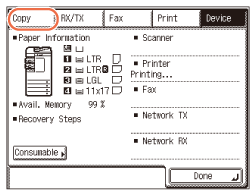
Press [Copy].
3
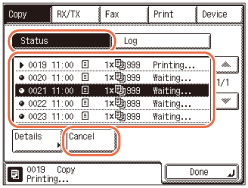
Press [Status] → select the job you want to cancel → press [Cancel].
NOTE:
You can view the details of the selected copy job by pressing [Details].
4
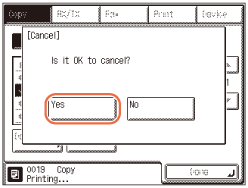
Press [Yes].
NOTE:
Pressing (stop) while the machine is scanning an original placed in the feeder may cause a paper jam. For instructions on how to clear paper jams in the feeder, see Troubleshooting.
(stop) while the machine is scanning an original placed in the feeder may cause a paper jam. For instructions on how to clear paper jams in the feeder, see Troubleshooting.You cannot select multiple jobs and cancel them all at once. Select and cancel one job at a time.
5
Press [Done] to return to the top screen.
Checking the Copy Log
You can check the records of copy jobs using the System Monitor screen.
1
Press [System Monitor].
2
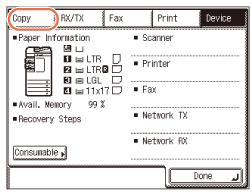
Press [Copy].
3
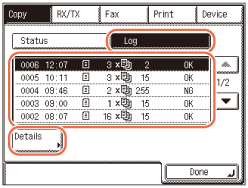
Press [Log] → select the job you want to check → press [Details].
4
Press [Done] to return to the top screen.