Managing Print Jobs
This section describes how to cancel print jobs using  (Stop) and the System Monitor screen, and how to check the details and records of print jobs using the System Monitor screen.
(Stop) and the System Monitor screen, and how to check the details and records of print jobs using the System Monitor screen.Canceling a Print Job Using the Stop Key
You can cancel a print job using (Stop) while printing.
(Stop) while printing.|
NOTE
|
|
Several prints may be output even after you cancel a job.
|
1
Press  (Stop).
(Stop).If the screen returns to the top screen, the print job is canceled.
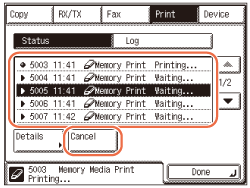
If the Print Job Status screen below appears:
|
1
|
Select the job you want to cancel → press [Cancel].
 NOTE:
If the Device screen appears, press [Print] to display the Print screen shown above.
You cannot select multiple jobs and cancel them all at once. Select and cancel one job at a time.
|
|
2
|
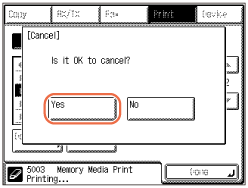
Press [Yes].
 |
Checking and Canceling Print Jobs Using the System Monitor
You can check the status of print jobs and cancel jobs being processed or waiting to be processed from the System Monitor screen.
|
NOTE
|
|
Several prints may be output even after you cancel a job.
|
1
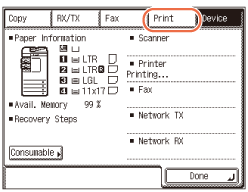
Press [System Monitor] → [Print].
2
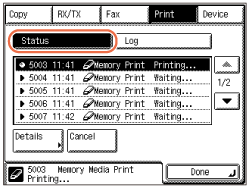
Press [Status].
3
Use [ ] or [
 ] to scroll through the job list, and select the job that you want to check or cancel.
] or [] to scroll through the job list, and select the job that you want to check or cancel.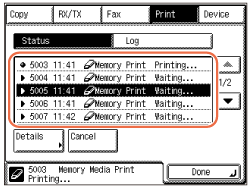
NOTE:
The messages displayed on the Status screen are as follows:
- [Printing]: Current job
- [Waiting]: Reserved jobs
If you want to check the job details:
|
1
|
Press [Details].
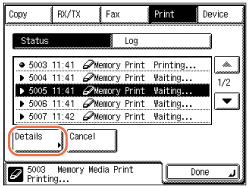 |
|
2
|
Check the job details and press [Done].
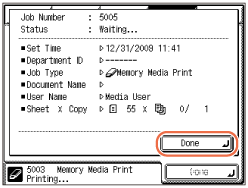 |
If you want to cancel the job:
|
1
|
Press [Cancel].
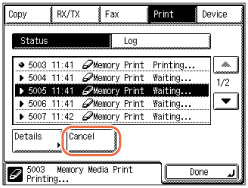 NOTE:
You cannot select multiple jobs and cancel them all at once.
|
|
2
|
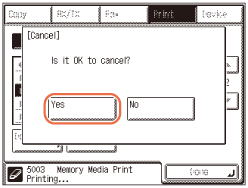
Press [Yes].
If you do not want to cancel the job, select [No] to return to the previous display.
 |
4
Press  (Reset) to return to the top screen.
(Reset) to return to the top screen.Checking the Print Log
You can check all of the completed print jobs using the System Monitor screen.
|
NOTE
|
|
If Job Log Display in System Settings is set to ‘Off’, the print log screen is not displayed on the System Monitor screen. For instructions on how to set Job Log Display, see Protecting the Machine from Unauthorized Access.
|
1
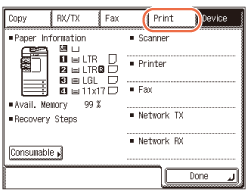
Press [System Monitor] → [Print].
2
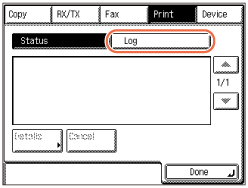
Press [Log].
3
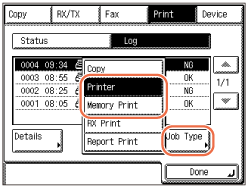
Press [Job Type] → [Printer] or [Memory Print].
|
|
[Printer]:
|
Press to check the print jobs from the printer driver.
|
|
[Memory Print]:
|
Press to check the print jobs from the USB memory media device.
|
4
Use [] or [] to scroll through the job list, and select the job that you want to check → press [Details].
] or [] to scroll through the job list, and select the job that you want to check → press [Details].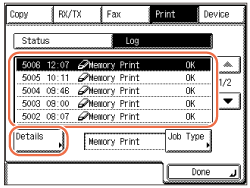
5
Check the details of job log → [Done].
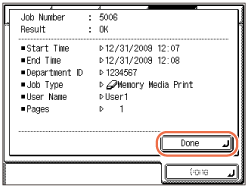
6
Press (Reset) to return to the top screen.
(Reset) to return to the top screen.