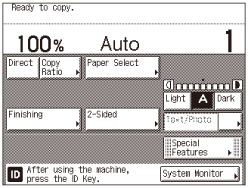
Setting System Management Mode
The System Management mode enables the administrator to restrict access to the System Settings by setting the System Manager ID and System Password.
|
IMPORTANT
|
|
If User ID Management is enabled, only users registered as “System Manager” can change the System Settings by logging in to the machine with their User ID and password. In this case, you cannot log in as the System Manager by entering the System Manager ID and System Password.
|
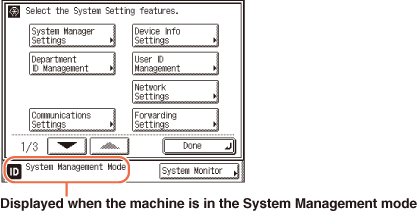
Specifying the System Manager Settings
Follow the procedure below to set the System Manager ID and System Password.
|
IMPORTANT
|
|
Attaching the optional Copy Card Reader-F1 and specifying the card IDs to be used restore the System Manger ID and System Password to their defaults (‘7654321’).
You must set both System Manager ID and System Password to manage the operations of the machine.
If the Language Switch setting is set to ‘On’, some characters are restricted and cannot be entered. To enter all characters, set the Language Switch setting to ‘Off’. (Configuring the Machine's Basic Settings)
|
|
NOTE
|
|
If the optional Copy Card Reader-F1 is attached, 1000 sequential numbers used as the card IDs cannot be used for the System Manager ID.
For instructions on how to enter characters using the on-screen keyboard, see Basic Operations.
The default settings are as follows:
System Manager ID: 7654321
System Password: 7654321
|
1
Press  (Additional Functions) → [System Settings].
(Additional Functions) → [System Settings].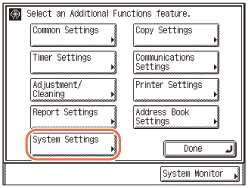
2
Enter the System Manager ID and System Password using  -
-  (numeric keys).
- (numeric keys).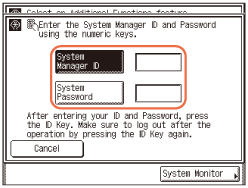
|
1
|
Press [System Manager ID] → enter the System Manager ID.
|
|
2
|
Press [System Password] → enter the System Password.
|
3
Press  (Log In/Out) on the machine’s control panel.
(Log In/Out) on the machine’s control panel.4
Press [System Manager Settings].
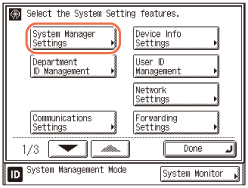
5
Press [System Manager] → enter the System Manager’s name → press [OK].
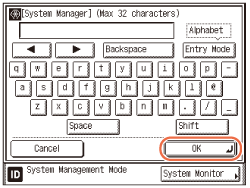
NOTE:
You can enter a maximum of 32 characters for the name.
6
Press [System Manager ID] → enter a number (up to seven digits) using - (numeric keys).
- (numeric keys).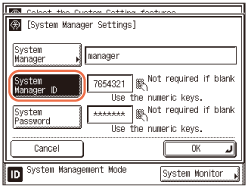
You cannot store a System Manager ID that only consists of zeros, such as <0000000>. If you enter fewer than seven digits, the machine stores the System Manager ID with leading zeros.
Example: If <02> or <002> is entered, <0000002> is stored.
NOTE:
If you make a mistake when entering the ID, press  (Clear) → enter the correct number.
(Clear) → enter the correct number.7
Press [System Password] → enter a number (up to seven digits) using - (numeric keys) → press [OK].
- (numeric keys) → press [OK].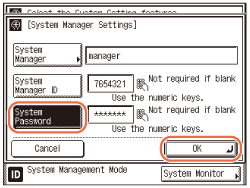
You cannot store a password that only consists of zeros, such as <0000000>.
If you enter fewer than seven digits, the machine stores the password with leading zeros.
Example: If <02> or <002> is entered, <0000002> is stored.
To cancel storing the System Manager Settings, press [Cancel].
NOTE:
If you make a mistake when entering the password, press (Clear) → enter the correct password.
(Clear) → enter the correct password.8
Press  (Reset) to return to the top screen.
(Reset) to return to the top screen.Operating the Machine in System Management Mode
This section describes how to operate the machine in the System Management mode.
|
NOTE
|
|
When the operation is complete, be sure to press
(Log In/Out) to log out of the System Management mode.The machine automatically logs out of the System Management mode after the Auto Clear time has elapsed. For details about the Auto Clear mode, see Configuring the Machine's Basic Settings.
|
When Department ID Management Is Enabled and User ID Management Is Disabled
When Department ID Management is enabled, the System Manager ID is handled as one of the departments. Follow the procedure below to log in as the System Manager.
1
Enter the System Management ID and password using - (numeric keys).
- (numeric keys).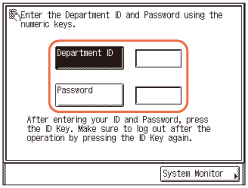
|
1
|
Press [Department ID] → enter the System Manager ID.
|
|
2
|
Press [Password] → enter the System Password.
|
2
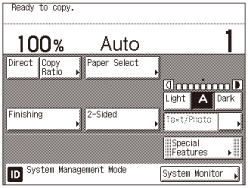
Press (Log In/Out).
(Log In/Out).The machine enters the System Management Mode.
When Both Department ID Management and User ID Management Are Disabled
1
Press (Additional Functions) → [System Settings].
(Additional Functions) → [System Settings].2
Enter the System Management ID and password using - (numeric keys).
- (numeric keys).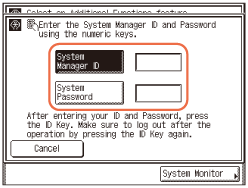
|
1
|
Press [System Manager ID] → enter the System Manager ID.
|
|
2
|
Press [System Password] → enter the System Password.
|
3
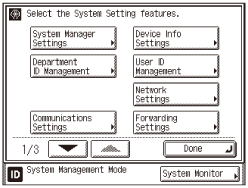
Press (Log In/Out).
(Log In/Out).The machine enters the System Management Mode.
When User ID Management Is Enabled
|
IMPORTANT
|
|
If User ID Management is enabled, only users registered as “System Manager” can change the System Settings by logging in to the machine with their User ID and password. In this case, you cannot log in as the System Manager by entering the System Manager ID and System Password.
|
1
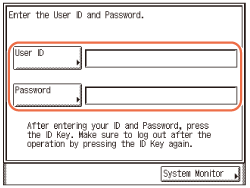
Enter the User ID and password.
|
1
|
Press [User ID] → enter the User ID of the user registered as the System Manager → press [OK].
|
|
2
|
Press [Password] → enter the password for the above user → press [OK].
|
NOTE:
For instructions on how to enter characters using the on-screen keyboard, see Basic Operations.
2
Press (Log In/Out).
(Log In/Out).The machine enters the System Management Mode.