Adjusting the Printing Position for Each Paper Source
If the printing position is skewed when printing from a certain paper source, you can adjust the position from the control panel.
IMPORTANT |
Confirm the adjustment result.If any part of the print image lies outside the printable area after adjusting the printing position, the part will be missing in the print result. |
NOTE |
Be careful of the orientation for 2-sided printingThe orientation of the images on the reverse pages varies depending on the printing orientation or setting for [Binding Location]. |
Checking the Printing Position
Perform the Printing Position Adjustment Print and check the position and direction to be adjusted.
IMPORTANT |
Adjusting the printing position for 2-sided printingSet [2-Sided Printing] to [On] in advance. |
1
Press [  ] (
] ( Feeder Selection).
] (Feeder Selection).2
Select [Paper Source] using [  ] and [
  ], and then press [OK].
] and [ ], and then press [OK].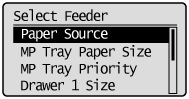
3
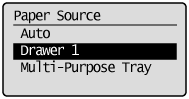
Select the paper source that you want to check the printing position using [ ] and [ ], and then press [OK].
] and [ ], and then press [OK].When adjusting the printing position for 2-sided printing, select the desired paper source.
 | [Drawer 2], [Drawer 3], [Drawer 4] is displayed only when the optional paper feeder(s) is (are) installed. |
4
Press [  ] (
] ( Online).
] (Online). 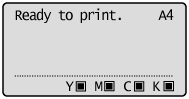
5
Make sure that the printer is online.
If the printer is not online, press [ ] (Online).
] (Online). 6
Press [  ] (
] ( Utility).
] (Utility).7
Select [Printing Pos. Print] using [ ] and [ ], and then press [OK].
] and [ ], and then press [OK].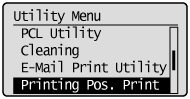
8
Select [Yes] using [ ], and then press [OK].
], and then press [OK].
→ | The Printing Position Adjustment Print is printed. The top of the output paper is the top of the Printing Position Adjustment Print. |
Next, check the printout results and specify the direction and position to be adjusted in "Adjusting the Printing Position" (See the next item). |
Adjusting the Printing Position
Next, check the printout results of the Printing Position Adjustment Print and specify the direction and position to be adjusted.
The measurements of  printed on paper are as the following:
printed on paper are as the following: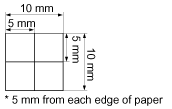
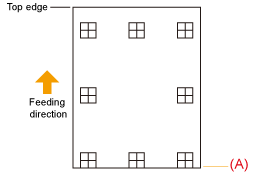
This section describes the setting procedure for the following Printing Position Adjustment Print printed with Drawer 1 specified, as an example.
In this case, adjust "Y position" by "-5.0 mm" because the printing position of (A) should be moved upward by 5 mm
IMPORTANT |
Adjusting the printing position for 2-sided printingAdjust the printing position of the first page using [Offset Y (2-Sided)] and [Offset X (2-Sided)]. The printing position of the second page depends on the settings for each paper source. |
NOTE |
Adjustable areaThe printing position can be adjusted within a range from -5 to +5 mm in the vertical direction. The printing position can be adjusted within a range from -2.22 to +2.22 mm in the horizontal direction. |
1
Press [ ] (Online).
] (Online). The Online indicator goes off, allowing you to specify the settings on the control panel.
Online indicator goes off, allowing you to specify the settings on the control panel.2
Press [  ] (
] ( Settings).
] (Settings).3
Select [User Maintenance] using [ ] and [ ], and then press [OK].
] and [ ], and then press [OK].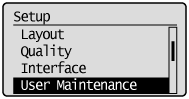
4
Select [Adj. Start Position] using [ ] and [ ], and then press [OK].
] and [ ], and then press [OK].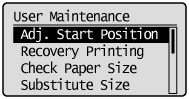
5
Select the direction and paper source that you want to check the printing position using [ ] and [ ], and then press [OK].
] and [ ], and then press [OK].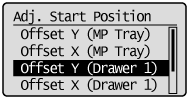
6
Specify the target numeric value using [ ] and [ ], and then press [OK].
] and [ ], and then press [OK].Check the printout results of the Printing Position Adjustment Print and select the numerical value to adjust the position.
Each time you press [ ], the value increases in +0.5 mm increments, and each time you press [ ], the value decreases in -0.5 mm increments. If you keep holding down [ ] or [ ], the value changes consecutively.
], the value increases in +0.5 mm increments, and each time you press [ ], the value decreases in -0.5 mm increments. If you keep holding down [ ] or [ ], the value changes consecutively.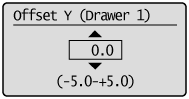
7
Press [ ] (Online).
] (Online). 8
Make sure that the printer is online.
If the printer is not online, press [ ] (Online).
] (Online). 9
Press [ ] (Utility).
] (Utility).10
Select [Printing Pos. Print] using [ ] and [ ], and then press [OK].
] and [ ], and then press [OK].11
Select [Yes] using [ ], and then press [OK].
], and then press [OK]. | The Printing Position Adjustment Print in which the setting is changed is printed. |
| Check the printout results to confirm the printing position. To make further adjustment, repeat Steps 1 to 11. |