Registering Default Paper Settings for the Multi-Purpose Tray
You can register default paper settings for the multi-purpose tray. Registering default settings can save yourself the effort of having to specify the settings each time you load the same paper into the multi-purpose tray.
|
|
|
After the default paper setting is registered, the paper setting screen is not displayed when paper is loaded, and the same setting is always used. If you load a different paper size or type without changing the paper settings, the machine may not print properly. To avoid this problem, select <Specify When Loading Paper> in step 3, and then load the paper.
|
1
Press  (
( ).
).
().2
Use  /
/ to select <Multi-Purpose Tray>, and press
  .
.
/ to select <Multi-Purpose Tray>, and press .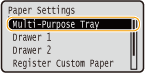
3
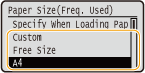
Select the paper size, and press .
.
 Registering a custom paper size
|
1
|
Select <Custom>, and press
.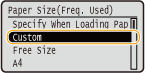 |
|
2
|
Specify the length of the <X> (shorter) side.
Select <X>, and press
.Input the length of the <X> side using
/ or the numeric keys, and press .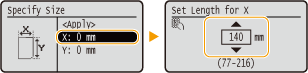 |
|
3
|
Specify the length of the <Y> (longer) side.
Select <Y>, and press
.Input the length of the <Y> side, and press
.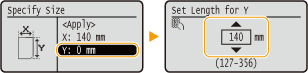 |
|
4
|
Select <Apply>, and press
.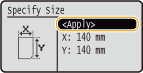 |

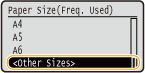
If the loaded paper size is not displayed
Select <Other Sizes>, and press .
.
About <Free Size>
If you frequently change sizes of paper to load, you can specify <Free Size>, which saves you the trouble of changing the paper size setting each time you print. You can make a setting so that an error message will be displayed when the paper size set in the printer driver is rather different from the size of the loaded paper. Action When Free Paper Size Mismatch
4
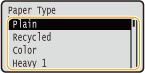
Select the paper type, and press .
.