Editing the Quick Menu
You can change the button name, comments, and location of a registered button, or delete it. You can also change the button size and background image of the Quick Menu.
1
Press  .
.
.2
Edit the Quick Menu screen or buttons.
 To change the button name and comment
1 | Press <Personal> or <Shared>. |
2 | Press   <Edit Buttons>. <Edit Buttons>. |
3 | Select a button and press <Rename>. 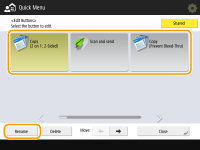 |
4 | Change the name or comment, and press <OK>. |
5 | Press <Close>. |
To change the location of the button
1 | Press <Personal> or <Shared>. |
2 | Press <Edit Buttons>. |
3 | Select a button and press  or or  next to <Move:>. next to <Move:>. |
4 | Press <Close>. |

You can move a desired button by pressing  on the bottom right of the screen and then dragging and dropping the button.
on the bottom right of the screen and then dragging and dropping the button.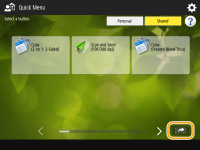
To delete the button
 |
Users with Administrator privileges can delete information for Personal buttons from the User Setting Information Management Service page of the Remote UI. Deleting User Setting Information |
1 | Press <Personal> or <Shared>. |
2 | Press <Edit Buttons>. |
3 | Select a button and press <Delete>.  |
4 | Press <Yes> <Close>. |
To change button size
1 | Press <Quick Menu Button Display Settings>. |
2 | Select a button size from the list and press <OK>. 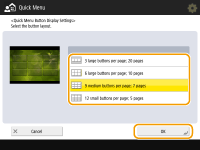 If you select <12 small buttons per page; 5 pages>, the comments entered for the buttons are not shown. |
To change the background image
1 | Press <Personal> or <Shared>. |
2 | Press <Wallpaper Settings>. |
3 | Select a background image from the list and press <OK>.  You can check the background image on the preview screen on the left of the list. |