Adding to Favorites
You can add frequently viewed Web pages to Favorites. Web pages registered in Favorites appear on the Main Menu screen as buttons. By adding a Web page to Favorites, you can easily access the Web page.
1.
Press [Web Access].

2.
Call up the Web page to add to Favorites → press  .
.
.
3.
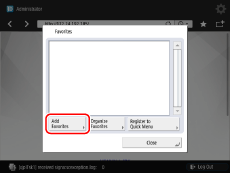
Press [Add Favorites].
4.
Press [OK].
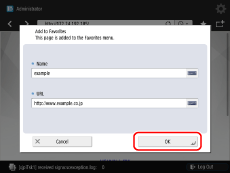
If you want to change the name of the Web page to be added, press the text field for [Name] → enter the name → press [OK].
If you add a line break in the name of the favorite page, the name on the Main Menu screen is displayed as you added the line break.
Even if the name of the favorite page contains line breaks, it is displayed in one line in the Favorites list.
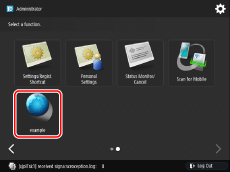
Function key for the Web page registered in Favorites is displayed on the Main Menu screen.
A screen below is an example for registering "sample" in Favorites:
|
NOTE
|
|
[Name] and [URL] are automatically displayed.
For instructions on entering characters, see "User's Guide."
The registered Web page is added to the list that appears when you press
.Up to 20 bookmarks can be registered in Favorites.
Up to 255 characters can be entered for each favorite name and URL.
|