Main Functions
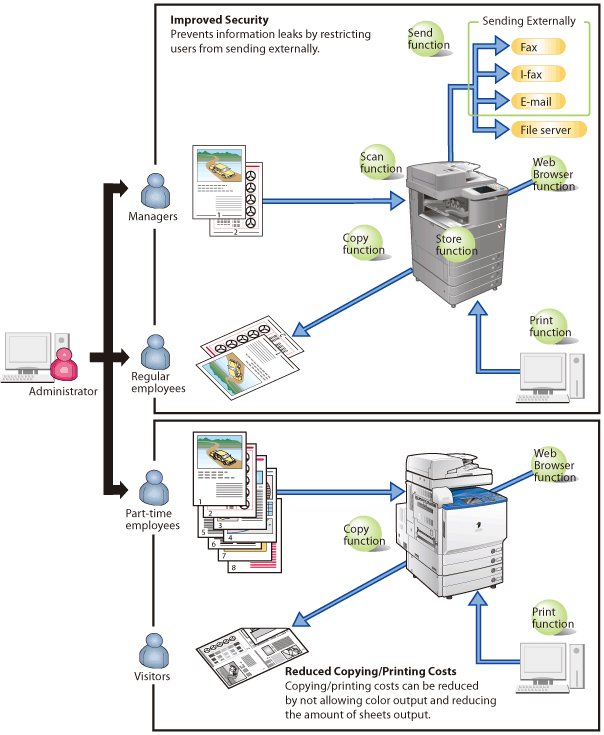
The Access Management System is a system for managing device restrictions. Restricting the functions that users can use with the Access Management System can have the following effects.
|
Function Name
|
Restrictions
|
|
Print function
|
Color printing, one-sided printing, page layout printing, saving to user inboxes
|
|
Store function
|
Color printing of user inbox documents, one-sided printing of user inbox documents, page layout printing of user inbox documents, saving to memory media, saving scanned documents to memory media, printing memory media documents
|
|
Copy function
|
Color copying, one-sided copying, page layout copying
|
|
Scan function
|
Color scanning
|
|
Send function/Store on Network
|
Sending e-mail, sending e-mail using Send to Myself, sending I-faxes, sending faxes, sending to file servers, using the Personal Folder send function, methods for specifying destinations, specifying the format for sending, registering network destinations
|
|
NOTE
|
|
Depending on your device, some restrictions may not be supported.
|
Using the Access Management System can provide the following effects:
Preventing external leakage of information
By restricting functions such as the Copy, Send, and Store functions and restricting the keys that can be used on the [Settings/Registration] screen for each user, you can prevent the external leakage of information.
By restricting functions such as the Copy, Send, and Store functions and restricting the keys that can be used on the [Settings/Registration] screen for each user, you can prevent the external leakage of information.
Reducing costs
By restricting functions related to copying/printing such as color output, one-sided output, and page layout for each user, you can reduce the cost of using devices.
By restricting functions related to copying/printing such as color output, one-sided output, and page layout for each user, you can reduce the cost of using devices.
Flow of User Authentication and Usage Restriction
When the Access Management System setup is complete, user authentication is required when operating the touch panel display or printing from a computer.
If Using the Touch Panel Display <Device Level Log-in>:
When using the Access Management System with Device Level Log-in, if the Access Management System setup is complete, a Login screen is displayed on the touch panel display.
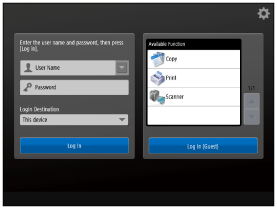
When [Log In] is pressed after entering a user name and password, user authentication is performed, and only the functions which that user can use become available on the touch panel display.
When an unregistered user is using the device and they press [Log In (Guest)] without entering a user name and password, only the functions that are not restricted become available on the touch panel display.
Since the [Settings/Registration] screen of the device can also be restricted, you can limit which users can change the settings of the device.
|
IMPORTANT
|
|
To effectively use the Access Management System, make sure that users log out from the device when they finish using it by pressing
 (Log In/Out) or (Log In/Out) or  (Log Out) on the touch panel display. (Log Out) on the touch panel display. |
If Using the Touch Panel Display<Function Level Log-in>:
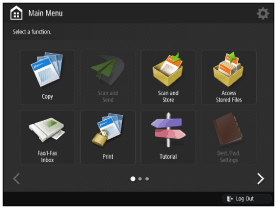
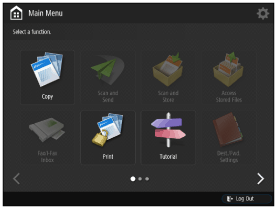
When using the Access Management System with Function Level Log-in, if the Access Management System setup is complete, the [Main Menu] screen is displayed on the touch panel display.
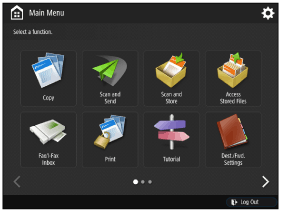
If you press the button for a function with authentication set, a login screen is displayed.
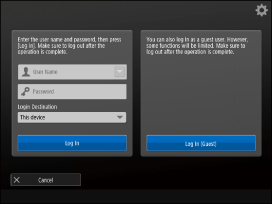
When [Log In] is pressed after entering a user name and password, user authentication is performed, and the screen for specifying detailed settings for the function is displayed on the touch panel display, only if the user is allowed to use that function.
|
NOTE
|
|
If unregistered users have usage privileges, the [Log In (Guest)] button is displayed. The usage privileges for unregistered users depend on the settings of the guest role ([GuestUser]).
|
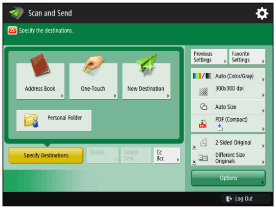
Since the [Settings/Registration] screen of the device can also be restricted, you can limit which users can change the settings of the device.
|
IMPORTANT
|
|
To effectively use the Access Management System, make sure that users log out from the device when they finish using it by pressing
(Log In/Out) or (Log Out) on the touch panel display. |
If Printing from a Computer:
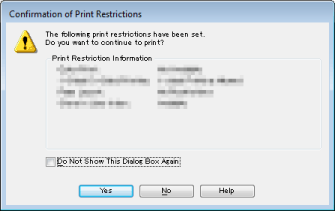
If you want to restrict printing from computers, it is necessary to set up (install the AMS Printer Driver Add-in and set user information for) all client computers that use the device after setting up the Access Management System.
If the client computers have been set up, the [Confirm Password for Authentication] dialog box is displayed when users print from a computer.
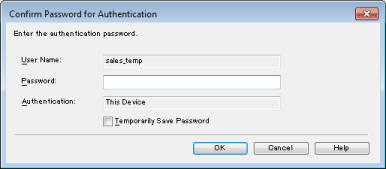
When [OK] is pressed after entering a password, user authentication is performed, and the restricted printing functions are displayed.