Device Management Privileges
For devices operating the Access Management System, the display and operation of the following screens related to device management are restricted according to the role associated with the user.
imageRUNNER ADVANCE devices
[Status Monitor/Cancel] screen
[Settings/Registration] screen
|
IMPORTANT
|
|
For devices using the AMS, only users who have been assigned the [Administrator]/[DeviceAdmin]/[NetworkAdmin] role (or a custom role with the same settings as this role) have device management privileges to access the screen for managing the device from the remote UI. The operations possible when using the control panel to manage the device are indicated below.
|
The [Status Monitor/Cancel] screen is displayed when you press  (Status Monitor/Cancel) on the touch panel display of the device. When operating the Access Management System, the device status can be checked on the [Status Monitor/Cancel] screen without logging in to the device, but the copy and send/receive status cannot be checked.
(Status Monitor/Cancel) on the touch panel display of the device. When operating the Access Management System, the device status can be checked on the [Status Monitor/Cancel] screen without logging in to the device, but the copy and send/receive status cannot be checked.|
NOTE
|
|
For more information on the [Status Monitor/Cancel] screen, see the instruction manuals of the device.
|
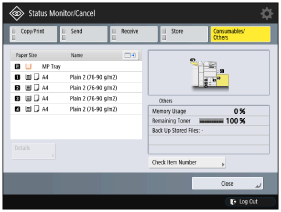
When a user with device management privileges (a user associated with the [Administrator] role or associated with a custom role based on the [Administrator] role, including the [DeviceAdmin] and [NetworkAdmin] roles) logs in, they can view/operate the job status and history.
When a user without device management privileges logs in, they can view/operate the status and logs of their own jobs, but the following restrictions are applied to jobs of other users.
|
[Status Monitor/Cancel] screen
|
Users with device management privileges
|
Users without device management privileges
|
|||
|
[Copy/Print]
|
[Job Status]
|
[Print]
|
[Print Next]
|
Available
|
Unavailable
|
|
[Details]
|
|||||
|
[Stop]
|
|||||
|
[Secured Print]
|
|||||
|
Names of jobs
|
Displayed
|
Displayed as "***"
|
|||
|
[Copy]
|
[Details]
|
Available
|
Unavailable
|
||
|
[Stop]
|
|||||
|
[Send]
|
[Job Status]
|
[Send]
|
[Details]
|
Available
|
Unavailable
|
|
[Stop]
|
|||||
|
Destinations
|
Displayed
|
Displayed as "***"
|
|||
|
[Fax]
|
[Details]
|
Available
|
Unavailable
|
||
|
[Stop]
|
|||||
|
Destinations
|
Displayed
|
Displayed as "***"
|
|||
|
[Receive]
|
[Job Status]
|
[Forward]
|
[Details]
|
Available
|
Unavailable
|
|
[Check I-Fax RX]
|
|||||
|
[Fax]
|
[Details]
|
||||
|
[Stop]
|
|||||
|
[Store]
|
[Job Status]
|
-
|
[Details]
|
Available
|
Unavailable
|
|
[Stop]
|
|||||
|
Destinations
|
Displayed
|
Displayed as "***"
|
|||
|
Other keys
|
Available
|
Available
|
|||
|
Other displayed items
|
Displayed
|
Displayed
|
|||
If you enable the AMS, the following items in [Settings/Registration] become unavailable. These settings will not be displayed.
|
IMPORTANT
|
|
If you enable the AMS, the settings for [Limit New Destinations] and [Address Book PIN] are disabled. Even if you disable the AMS, the settings in [Limit New Destinations] and [Address Book PIN] will not automatically return to the original configuration. It is necessary to configure the settings again.
|
|
[Settings/Registration] screen
|
|||
|
[Function Settings]
|
[Copy]
|
[Register Remote Device for Cascade Copy]
|
|
|
[Send]
|
[Common Settings]
|
[Limit New Destinations]*1
|
|
|
[Allow Sending with Expired Certificate]
|
|||
|
[Always Add Device Signature to Send]*2
|
|||
|
[Limit E-Mail to Send to Myself]*4
|
|||
|
[Restrict File TX to Personal Folder]*4
|
|||
|
[Store/Access Files]
|
[Memory Media Settings]
|
||
|
[Set Destination]
|
[Address Book PIN]*3
|
||
*1: Can be restricted for each user in the [Send to New Addresses] restricted item inside the role.
*2: Can be restricted for each user in the [Add Device Signature to Sending Files] restricted item inside the role.
*3: Address book usage can be restricted for each user in the [Use Address Book/Register Storage Location for Network] restricted item inside the role.
*4: Depending on the model of the device, this item may not be displayed.
|
IMPORTANT
|
|
When functions on the [Settings/Registration] screen are restricted, shortcuts to those functions cannot be used.
If the Scan function is restricted in the [Scan] restricted item inside a role, [Function Settings] → [Common] → [Print Settings] → [Register Form] cannot be used.
If address book usage is set to [Not Allowed] in the [Use Address Book/Register Storage Location for Network] restricted item inside a role, [Set Destination] → [Address Lists]/[Register Destinations]/[Rename Address List]/[Register One-Touch]/[Change Default Display of Address Book] cannot be used.
If address book usage is set to [Read-Only], [Set Destination] → [Register Destinations]/[Rename Address List]/[Register One-Touch]/[Change Default Display of Address Book] cannot be used. |