Online Authentication
If the computer on which you want to use Desktop is connected to the Internet, select [Online Authentication] from the [License Authentication] dialog box.
Desktop can be used immediately after license authentication is complete.
1.
Start Desktop Browser or Desktop Editor.
The [License Authentication] dialog box is displayed.
|
NOTE
|
|
For more information on the startup method, see the User's Guide.
The [License Authentication] dialog box is not displayed when authentication has already been performed with a node lock license, or when Desktop is being used with a floating license.
|
2.
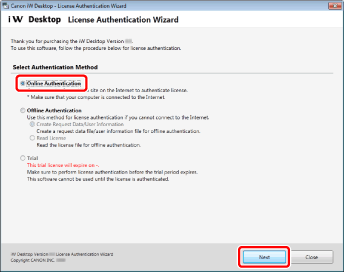
Select [Online Authentication] and click [Next].
3.
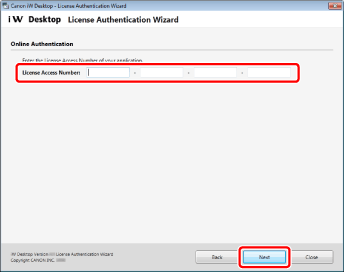
Enter the License Access Number, and click [Next].
|
NOTE
|
|
Enter the License Access Number as 16 (4 groups of 4 characters) alphanumeric characters. The number is not case-sensitive.
Your License Access Number can be found in the material included in the product package of Desktop.
|
4.
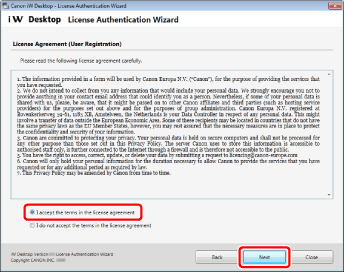
Check the content of the License Agreement (User Registration). Select [I accept the terms in the license agreement] if you agree, and then click [Next].
5.
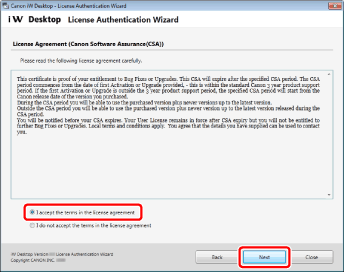
Check the content of the License Agreement (Canon Software Assurance(CSA)). Select [I accept the terms in the license agreement] if you agree, and then click [Next].
6.
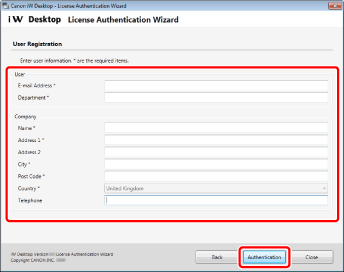
Enter the user information, and click [Authentication].
7.
Click [Exit].
License authentication is complete.