Using a Trial License
A trial license allows you to use the same functions as a node lock license, but has a limited period of use.
The trial period starts being counted from when you start using the trial license. Desktop cannot be started after the trial period is over.
The [License Authentication] dialog box is displayed every time Desktop is launched, until authentication is performed using a node lock license.
|
NOTE
|
|
Desktop can be continued to be used by performing authentication using a node lock license, or by switching to a floating license after the trial period. The license can also be changed during the trial period. For information on changing a trial license to a floating license, see the following.
An Internet connection is required when authenticating a trial license.
|
1.
Start Desktop Browser or Desktop Editor.
The [License Authentication] dialog box is displayed.
|
NOTE
|
|
The [License Authentication] dialog box can also be started with the following operations.
Starting the Printer Monitor
Execute Fax, Print Settings, and Convert to PDF in the Quick Printing Tool.
For more information on the startup method, see the User's Guide.
The [License Authentication] dialog box is not displayed when authentication has already been performed with a node lock license, or when Desktop is being used with a floating license.
|
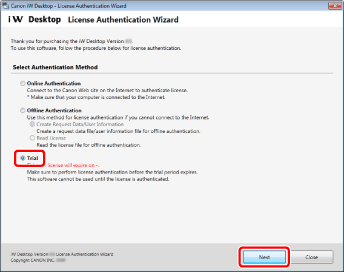
2.
Select [Trial] and click [Next].
|
NOTE
|
|
If the trial period has ended, [Trial] cannot be selected.
|
3.
Check the trial period, and click [Trial].
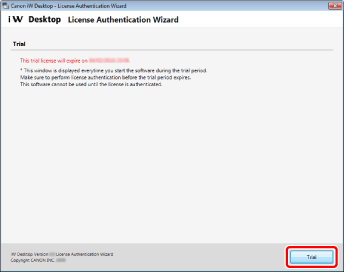
Desktop is started.