Upgrading Online
If the local license server is connected to the Internet, upgrade the license by connecting to the Internet. In this case, select [Online Authentication] from the [License Authentication] dialog box.
|
NOTE
|
|
Your server administrator should perform this procedure on the local license server.
|
1.
Execute the "Start-FloatingLicenseInformationManagement.vbs" file in the "LicenseTools" > "<language name>" folder you copied to a local folder of your choice.
Floating License Information Manager is started.
|
NOTE
|
|
Floating License Information Manager can also be started from the Floating License Installation Media. In this case, double-click the "Start-FloatingLicenseInformationManagement.vbs" file in the "LicenseTools" > "<language name>" folder.
|
2.
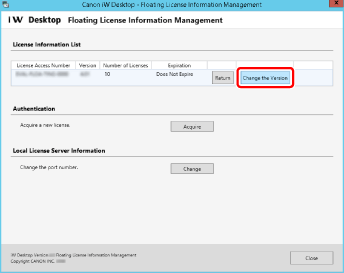
Click [Change the Version] .
|
NOTE
|
|
If [Change the Version] is not displayed, it is not necessary to upgrade the license.
|
3.
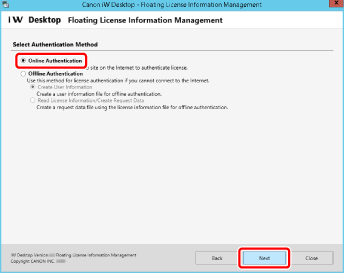
Select [Online Authentication] and click [Next].
4.
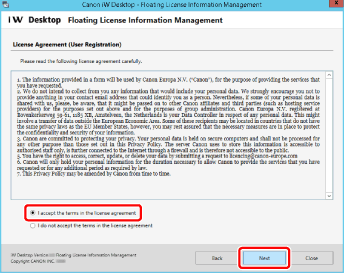
Check the content of the License Agreement (User Registration), select [I accept the terms in the license agreement] if you agree, and then click [Next].
5.
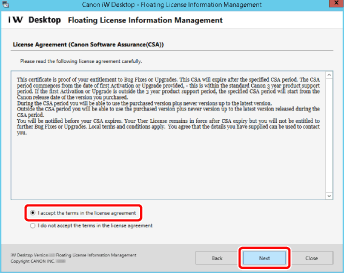
Check the content of the License Agreement (Canon Software Assurance(CSA)). Select [I accept the terms in the license agreement] if you agree, and then click [Next].
6.
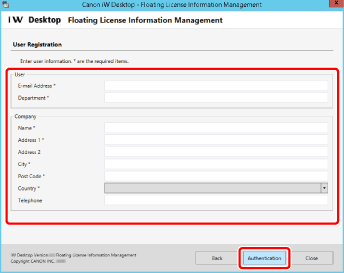
Confirm the user information, and click [Authentication].
7.
Click [Exit].