Saving Print Data
You can store print data in a box in the printer. You can also change the print settings of and combine the print data in boxes.
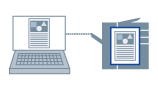 |
|
Saving print data in a box in the printer
|
1.
Display the [Basic Settings], [Page Setup], [Finishing], [Paper Source], or [Quality] tab.
2.
Select [Output Method] → [Store] → click [Yes].
The [Store Details] Dialog Box is displayed.
3.
Configure the settings for [Data Name] → select a storage destination from [Mail Boxes] → click [OK].
4.
Click [OK] in the printer driver screen.
5.
Click the print button in the application.
The print data is sent to the storage destination in the printer. The data is output by an instruction from the control panel of the printer or the Remote UI.
References
To get box information from the printer and apply it to the [Store Details] dialog box, click [Get Device Status] in the [Device Settings] tab.
To be able to specify the box number when printing, select [Specify Mail Box Number When Storing] in the [Device Settings] tab.