Modifying and Repairing Desktop
Desktop can be modified/repaired from [Programs and Features] in the Control Panel.
Modify: Modifies the installed Desktop. Use this to install the User's Guide later.
Repair: Restores the state of Desktop to how it was when installed or before making a modification.
|
NOTE
|
|
The following programs cannot be repaired by repairing Desktop. To repair these programs, repair each program individually.
.NET Framework 4.6
The following programs cannot be repaired by repairing Desktop. To repair these programs, see "Software License Registration Guide".
SPS Library
License Information Management
|
Modifying Desktop
1.
Start Windows and log in to the system as a user with Administrator privileges.
2.
Select the [Start] menu > [Control Panel] > [Programs] > [Programs and Features].
The [Programs and Features] is displayed.
|
NOTE
|
|
If you are using Windows 8.1, display Charms and select [Settings] > [Control Panel] > [Programs] > [Programs and Features].
For Windows 10, select the [Start] menu > [Windows System] > [Control Panel] > [Programs] > [Programs and Features].
The program can be modified by selecting [Change] in the [Program Maintenance] of the Desktop Setup Wizard that is started using the "Desktop Installation Media".
|
3.
Select [imageRUNNER ADVANCE Desktop] and click [Change].
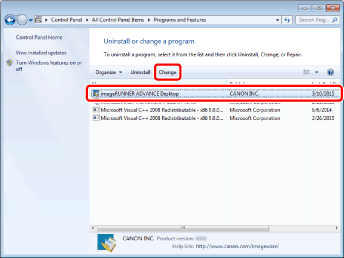
imageRUNNER ADVANCE Desktop Installer is started.
|
NOTE
|
|
A message prompting you to stop applications may be displayed during the change process, depending on your environment. Follow the displayed message to proceed with the Desktop modification.
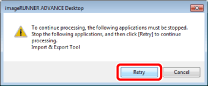 |
4.
Confirm the displayed message and click [Next].
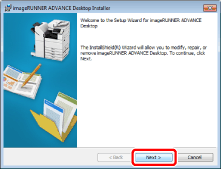
The [Program Maintenance] is displayed.
5.
Select [Modify] and click [Next].
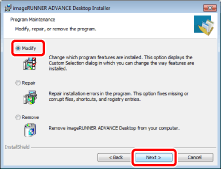
If the User's Guide is not installed, a screen for selecting whether to install the User's Guide is displayed.
|
NOTE
|
|
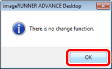
If no items can be added, a message indicating that no items can be added is displayed.
 |
6.
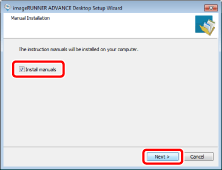
To install the User's Guide, select the [Install manuals] check box and click [Next].
|
NOTE
|
|
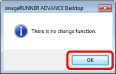
If you deselect the [Install manuals] check box and click [Next], a message indicating that no items are selected is displayed.
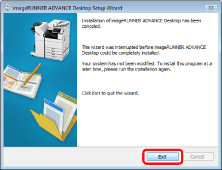
 Click [Cancel] if you do not want to install the User's Guide. A message confirming whether you want to cancel the installation is displayed. Click [Yes] > [Exit] to cancel the change.
 |
7.
Confirm the displayed message and click [Start].
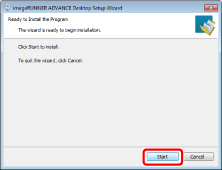
The modification of the program starts.
When the program change is complete, a confirmation message indicating that the change is complete is displayed.
8.
Click [Exit].
Repairing Desktop
1.
Start Windows and log in to the system as a user with Administrator privileges.
2.
Select the [Start] menu > [Control Panel] > [Programs] > [Programs and Features].
The [Programs and Features] is displayed.
|
NOTE
|
|
If you are using Windows 8.1, display Charms and select [Settings] > [Control Panel] > [Programs] > [Programs and Features].
For Windows 10, select the [Start] menu > [Windows System] > [Control Panel] > [Programs] > [Programs and Features].
The program can be repaired by selecting [Repair] in the [Program Maintenance] of the Desktop Setup Wizard that is started using the "Desktop Installation Media".
|
3.
Select [imageRUNNER ADVANCE Desktop] and click [Change].
imageRUNNER ADVANCE Desktop Installer is started.
|
NOTE
|
|
A message prompting you to stop applications may be displayed during the repair process, depending on your environment. Follow the displayed message to proceed with the Desktop repair.
|
4.
Confirm the displayed message and click [Next].
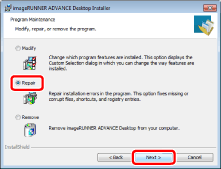
The [Program Maintenance] is displayed.
5.
Select [Repair] and click [Next].
6.
Confirm the displayed message and click [Start].
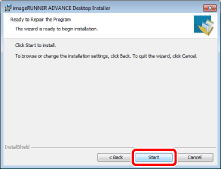
The program repair process starts.
When the program repair is complete, a confirmation message indicating that the repair is complete is displayed.
|
NOTE
|
|
During the repair installation, [Enter network credentials] may be displayed.
If the same screen is displayed again even if the entered user name and password are valid, it is necessary to assign the domain name and computer name of the Run As Account.
Example: (domain that you belong to or computer name)\user name
|
7.
Click [Exit].
|
NOTE
|
|
After repairing this product, it may be necessary to restart your computer.
If the program does not operate normally after the Desktop repair, the program may operate normally after uninstalling and then installing Desktop.
|