Components of Desktop
Desktop consists of Desktop Browser, Desktop Editor, and the Quick Printing Tool.
Desktop Browser
You can perform the following operations with Desktop Browser.
Desktop Browser manages documents imported from local computers, network drives, external file management servers, or external devices such as imageRUNNER ADVANCE by using libraries.
Its search function supports full-text searches in addition to searching for document names.
It comprehensively supports the importing, printing, and sending of documents.
Desktop Browser features the Edit Pages Mode in addition to Desktop Browser. The Edit Pages Mode can be started from Desktop Browser.
Desktop Editor
You can perform the following operations with Desktop Editor.
You can put document files that have been saved with various application programs together into a single IWB document.
You can register/manage complicated print settings as print templates and reduce document margins to save paper.
You can perform Mail Merge printing by setting a Mail Merge field in a document.
You can add annotations such as text and figures to documents. You can also approve documents by using digital stamps.
You can edit documents even if you do not have the original application a document was created in.
Regarding the Desktop Editor Modes
Desktop Editor has the following modes.
Print Mode
Annotations Mode
Scan Mode
The mode can be switched with the tabs on the ribbon. It is set as follows by default.
Print Mode: If the [Print Settings] tab or [Print Option] tab is selected on the ribbon
Annotations Mode: If the [Annotations] tab is selected on the ribbon
Scan Mode: If the [Scan] tab is selected on the ribbon
The modes of the tabs on the ribbon can be checked in [Selected Tab Type] in [Customize the Ribbon].
The functions (commands) that can be operated in Desktop Editor differ according to the mode.
Other modes can be started from the Print Mode and Annotations Mode.
In addition to the Print Mode, Annotations Mode, and Scan Mode, Desktop Editor has five other modes that provide convenient functions.
Specify Area Not to Edit Mode
Mail Merge Print Settings Mode
Digital Stamps Mode
Edit Original Pages Mode
Redaction Mode
Quick Printing Tool
You can perform the following operations with Quick Printing Tool.
Using a drag and drop operation on multiple documents to print them, send them via fax, or convert them to PDF files
Checking the status of a device using the device status icon
Checking the status of print and fax transmission/reception jobs using the job status icon
Screen Components of Desktop Browser
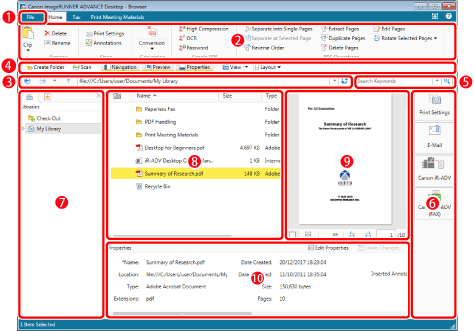
Desktop Browser consists of a "[File] menu", "ribbon", "windows", and "bars".
Documents and folders can be searched on a separate Search Screen.
The screen components differ when the Edit Pages Mode is running.
|
1
|
[File] menu
|
The [File] menu contains functions such as printing and scanning and items regarding the configuration of all of Desktop.
|
|
2
|
Ribbons
|
The ribbon includes tabs with commands for performing operations on and editing documents stored in libraries and commands for sending and receiving faxes and printing materials.
Commands are grouped by function and located on tabs. You can switch the displayed commands by selecting the tabs.
The following tabs are displayed on the ribbon of Desktop Browser by default.
[Home]
[Fax]
[Print Meeting Materials]
While the Edit Pages Mode is running, the [Edit Pages] tab is displayed on the ribbon and other tabs are hidden.
|
|
3
|
Address Bar
|
Displays the path of the selected library or folder.
|
|
4
|
Toolbar
|
The toolbar enables you to set frequently used ribbon commands as tool buttons.
|
|
5
|
Simple Search Bar
|
The simple search bar enables you to enter keywords to perform a simple search. Also, if you specify the properties of the search target with a keyword, you can perform a detailed search.
|
|
6
|
Output Bar
|
Enables you to configure and use settings for linkage with applications and devices.
|
|
7
|
Navigation Window
|
The Navigation Window is used to organize multiple libraries and list the folder structure inside libraries.
|
|
8
|
File List View Window
|
Displays the content of the libraries and folders selected in the Navigation Window.
You can change the File List View Window to the thumbnail view or list view.
|
|
9
|
Preview Window
|
Displays the preview of a document selected in the File List View Window.
When the Edit Pages Mode is running, windows other than the Preview Window are hidden, the Preview Window is displayed larger, and PDF documents can be edited.
|
|
10
|
Properties Window
|
Displays the information (properties) of a document or folder selected in the Navigation Window or File List View Window.
|
Screen Components of Desktop Editor
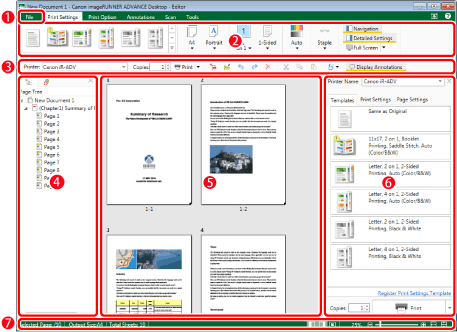
Desktop Editor consists of a "[File] menu", "ribbon", "windows", and "bars". The screen composition differs depending on the selected ribbon.
|
1
|
[File] menu
|
The [File] menu contains all the functions of Desktop Editor, such as saving, printing, and scanning documents, and items regarding the configuration of all of Desktop.
|
|
2
|
Ribbons
|
Commands for print format settings, adding annotations/digital stamps, and calling the Mail Merge Print Settings Mode/various edit modes are placed in ribbons. Commands are grouped by function and located on tabs. You can switch the displayed commands by selecting the tabs. The following tabs are displayed on the ribbon by default.
[Print Settings]
[Print Option]
[Annotations]
[Scan]
[Tools]
|
|
3
|
Toolbar
|
The toolbar enables you to set frequently used ribbon commands as tool buttons.
|
|
4
|
Navigation Window
|
The following tabs are displayed in the Navigation Window. The tabs displayed in the Navigation Window vary depending on the selected ribbon tab.
If the [Print Settings]/[Print Option] tab is selected on the ribbon[Page Tree] tab: Displays the page tree of the document. You can expand and collapse the chapters displayed in the list.
[Original Documents] tab: Displays the documents that existed before being converted into an IWB document (original documents). You can export original documents displayed in the list.
If the [Annotations] tab is selected on the ribbon[Thumbnails] tab: Displays the document page thumbnails. Clicking page thumbnails enables you to select pages to be displayed or have operations performed on.
[Annotation List] tab: Displays a list of annotations added to the document.
[Signature List] tab: Displays a list of digital stamp signatures added to the document.
If you select the [Tools] tab on the ribbon, the content of the ribbon tab selected before switching to the [Tools] tab is displayed in the Navigation Window.
|
|
5
|
Work Window
|
The Work Window is an area for displaying document previews and editing documents.
|
|
6
|
Details Window
|
The area displayed on the right side of Desktop Editor is called the Details Window. The following types of Details Window exist.
Detailed Window of Print Settings: Displayed for the Print Mode.
Annotation Format Window: Displayed for the Annotations Mode.
The content displayed in the Details Window differs according to the selected ribbon tab or the running mode.
If the [Print Settings]/[Print Option] tab is selected on the ribbon (Print Mode)You can select the printer/fax driver to use for printing/sending a document via fax, and then print/send a document via fax. The following tabs are displayed.
[Templates] tab: You can select a print settings template. You can also register print settings specified in the document that you are editing as a template.
[Print Settings] tab: You can configure print settings.
[Page Settings] tab: You can configure header/footer and watermark settings.
If the [Annotations] tab is selected on the ribbon (Annotations Mode)The annotation buttons and annotation properties are displayed in the Details Window, Click
 to display annotation buttons by type. Click to display annotation buttons by type. Click  to hide the buttons. to hide the buttons.In the Mail Merge Print Settings ModeThe imported record list and the Mail Merge field properties are displayed in the Details Window.
In the Digital Stamps ModeDigital stamp properties are displayed in the Details Window.
If you select the [Tools] tab of the ribbon, the content of the ribbon tab selected before switching to the [Tools] tab is displayed in the Details Window.
|
|
7
|
Status Bar
|
Displays the total number of document pages, page number of the currently selected page, output paper sizes, and the number of sheets to be printed. You can also perform the following operations.
Change the magnification factor of the Work Window
Displaying the Work Window in full screen view
Showing/Hiding the Navigation Window
Showing/Hiding the Details Window
|