
Communication Management Report
You can check the fax and e-mail logs of sent and received documents by printing a Communication Management Report. The report can be printed automatically after every 40 transmissions, or you can print it manually.
|
|
|
For imageRUNNER 2206N, this function can only be used when the optional Color Send Kit is attached.
You cannot select <Communication Management Report> if <Off> is set for <Display Job Log> in <System Management Settings>.
|
<Menu>  <Output Rprt.> <Report Settings> <Communication Management Report> Select the print setting
<Output Rprt.> <Report Settings> <Communication Management Report> Select the print setting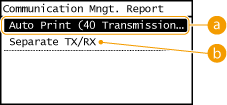
 <Auto Print (40 Transmissions)>
Tap <On> to print the report automatically after every 40 transmissions, or <Off> if you do not want to print the report automatically.
 <Separate TX/RX> (imageRUNNER 2206iF)
Tap <On> to print sent and received reports separately, or <Off> to print both reports on one sheet.
Print the Report Manually
<Menu> <Output Rprt.> <Print List> <Communication Management Report> Check that the size and type of paper displayed on the screen is loaded in the machine <OK> <Yes>
<Output Rprt.> <Print List> <Communication Management Report> Check that the size and type of paper displayed on the screen is loaded in the machine <OK> <Yes>Example:

Result
"OK" indicates that the transmission was completed successfully while "NG" and three digits (an error code) indicates that the transmission failed (Countermeasures for Each Error Code). For e-mail, Communication Management Reports indicate the transmission result between the machine and the mail server, not between the machine and the destination address.