Backing Up Printer Address Books
This section describes the method for backing up address books from printers on the network.
IMPORTANT |
If the printers that belong to the target group of a task are changed after registering a task, the task is executed for the new printers. |
NOTE |
Backed up address books cannot be distributed to printers. In order to distribute backed up address books, it is necessary to export them to a file, import them to this software, and then create an address book for distribution. For details, see the following. |
Backup Preparations
1.
Settings must be configured on the printers to back up from. Configure the printers before executing a task.
For details, see the following.
Creating Backup Tasks
1.
Select the [Tasks] menu > [Task List].
2.
Click [Create].
3.
Click [Back Up Address Books].
4.
Configure the task on the [Scheduled] tab and the [Targets] tab.
For details, see the following.
NOTE |
If printers that do not support the Address Book Management of this software are included in a device group, the task is not executed for those printers. |
5.
Set the task operation on the [Task-Specific Settings] tab.
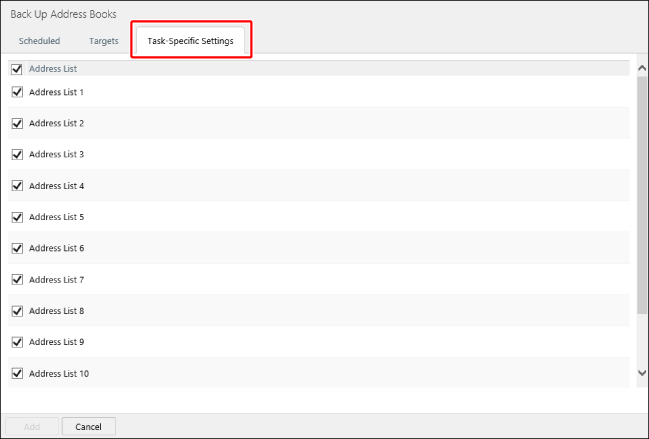
Select the address lists to back up from the printers.
Select the following item to disable the [Address Book] setting in [Restrict Receiving for Each Function] when executing a task for Type I printers.
[Restart the printer before task execution if restart is necessary to enable access to address books.]
[Restart the printer before task execution if restart is necessary to enable access to address books.]
NOTE |
It is not necessary to select it if the [Address Book] setting in [Restrict Receiving for Each Function] has been disabled in advance. |
6.
Click [Add].
The address books backed up from printers can be checked in the following.
[Devices] menu > [Backup Data] > [Address Books]
You can check the information of the registered tasks by selecting the [Tasks] menu > [Task List].
For details, see the following.
You can check the information of executing or completed tasks by selecting the [Tasks] menu > [History].
For details, see the following.