Entering Characters
For screens that require alphanumeric entries, enter characters using the keys on the touch panel display. To enter numbers, you can also use the numeric keys.
Example: <Alphanum. Char.> mode
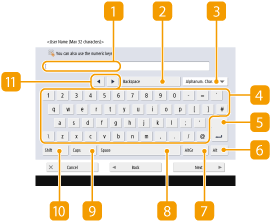
 Character input field
Characters entered are displayed.
 <Backspace> button
Each time you press the button, you can delete a character to the left of the cursor one by one.

If a character you want to delete is not to the left of the cursor, press  or
or  (
( ) to move the cursor.
or () to move the cursor.Press  (Clear) on the control panel if you want to delete all the characters you entered.
(Clear) on the control panel if you want to delete all the characters you entered. Entry mode button
Select the entry mode from the drop-down list.
<Alphanum. Char.> | Alphanumeric character entry mode |
<Symbol> | Symbol entry mode |
You may not be able to select the entry mode because the type of characters that you can enter is predetermined for some screens.
 Character input button
The same keyboard layout as that of a computer.
 Enter button
Press to start a new line.
 <Alt> button
Press to display only the numeric keys.
This button may not be available depending on the <Keyboard Layout> setting. For details, see Switching the Displayed Language or <Switch Language/Keyboard>.
 <AltGr> button
Press to display characters with accent marks.
This button may not be available depending on the <Keyboard Layout> setting. For details, see Switching the Displayed Language or <Switch Language/Keyboard>.
 <Space> button
Press to enter a space.
 <Caps> button
Press to enter uppercase characters.
 <Shift> button
Press to enter uppercase characters or symbols.
Cursor button
Move the cursor in the input field.
|
When displaying the numeric keys iconWhen <  You can use numeric keys.> is displayed, you can enter numerical values using the numeric keys on the control panel. You can use numeric keys.> is displayed, you can enter numerical values using the numeric keys on the control panel.Example: <Copy Ratio> setting screen 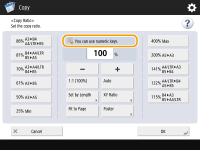 When < Enter using the numeric keys.> is displayed, only the numeric keys on the control panel can be used for entering numbers.Enter characters from the USB keyboardTo enter characters, you can also use a USB keyboard by connecting it to the USB port (Front Side). Note the following points when entering from a USB keyboard. Set <Use MEAP Driver for USB Input Device> in <USB Settings> to <Off>. <Use MEAP Driver for USB Input Device> You can only enter ASCII characters from a USB keyboard. Keys that are not displayed on the keyboard screen of the touch panel display, such as Delete, End, Tab, Esc, and function keys, cannot be used on a USB keyboard. The entering sound of a USB keyboard is produced based on the <Entry Tone> and <Invalid Entry Tone> settings on the sound setting screen. Setting Sounds |