
Configuring the Firewall of the Sub Line
You can set whether to allow communication only with devices that have the specified IP address for communication with the sub line.
|
Only IPv4 addresses can be registered for the sub line. For information on the exception addresses and exception port numbers that can be used for communication and are registered by default, see Management Functions. |
1
Press  (Settings/Registration).
(Settings/Registration).2
Press <Preferences>  <Network> <Sub Line Settings> <Firewall Settings>.
<Network> <Sub Line Settings> <Firewall Settings>.3
Press <IPv4 Address Filter>.
4
Select <Outbound Filter> or <Inbound Filter>.
To restrict data sent from the machine to a computer, select <Outbound Filter>.
To restrict data received from a computer, select <Inbound Filter>.
5
Set <Use Filter> to <On>, select <Default Policy>, then press <Register>.
For <Default Policy>, select <Reject> to only allow communication with devices that have an IP address specified in <Exception Addresses> in the next step, or select <Allow> to reject communication with them.
If <Reject> is selected for <Default Policy>, the restrictions do not apply to sending to multicast or broadcast addresses.
6
Set the exception addresses.
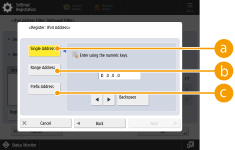
Specify the IP addresses to designate as exceptions of the <Default Policy> option selected in the previous step. Select one of the input methods described below.
 <Single Address>
Enter an individual IP address to designate as an exception.
 <Range Address>
Specify a range of IP addresses. Enter a separate address for <First Address> and <Last Address>.
 <Prefix Address>
Specify a range of IP addresses using a prefix (network address). Enter a network address for <Address>, and specify the network address length in <Prefix Length>.
 Setting exception addresses for the transmission filter/reception filter
1 | Select the IP address input method, and enter the exception addresses. |
2 | Press <Next>. |
3 | Set the port number if necessary, and press <OK>. Select whether to specify a port number. You can configure detailed communication restrictions by specifying a port number for the exception address. 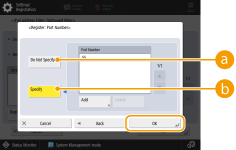 <Do Not Specify> <Do Not Specify>The exception address setting applies to all communication received from the specified IP address. <Specify>The exception address setting only applies to communication received from the specified IP address using the designated port number. Press <Add>, enter the port number, and press <OK>. You can register up to 50 ports per one exception address. |
To edit an exception address
On the screen displayed in step 5, select the exception address that you want to edit, and press <Edit> to display the edit screen.
7
Press <OK>.
8
Press (Settings/Registration) (Settings/Registration) <Apply Set. Changes> <Yes>.
(Settings/Registration) (Settings/Registration) <Apply Set. Changes> <Yes>. |
Checking the blocked communication requests in the logThe latest 100 communications blocked by the firewall can be displayed from (Settings/Registration) <Preferences> <Network> <Firewall Settings> <IP Address Block Log>. The history of blocked communications can be exported from the Remote UI in the CSV format. Exporting a Log as a FileIf <Default Policy> is set to <Reject>, the history of communication blocked by the firewall is not displayed in <IP Address Block Log>. |