Logging In to Enterprise Management Console V4.x
1.
Enter the following URL in the Web browser to access this software.
For the server computer where the Manager is installed:
https://localhost:<port number>/
For a client computer:
https://<FQDN or IP address of the computer where the Manager is installed>:<port number>/
For information on the procedure when a security warning is displayed in the Web browser, see the following.
"Configuring the Certificate for Encrypted Communication" in the User's Guide
NOTE |
The port number can be omitted if the default port number (80 for HTTP, 443 for HTTPS) has not been changed. |
2.
When accessing this software for the first time after installation, configure the system administrator. If it has already been configured, enter the information for logging in.
The [Administrator Settings] screen is displayed.
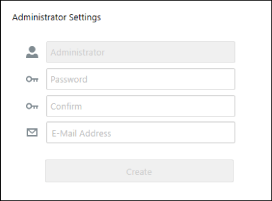
In [Password] and [Confirm], enter the string to use as the Administrator password.
NOTE |
Set a password that is eight characters or longer. |
Enter the e-mail address of the administrator in [E-Mail Address].
Click [Create].
When the password is successfully set, the user is logged in as the Administrator and the [System] menu > [Preferences] page is displayed.