Registering Security Policy Monitoring/Distribution Tasks
This section describes the method for monitoring the security policies of printers to check whether they match the standard.
A standard security policy can be distributed to printers that do not match the standard security policy.
Preparing to Monitor/Distribute Security Policies
This section describes the method for creating a security policy to use as the monitoring standard when monitoring security policies of printers.
Refer to the following settings of iW Management Console V3.x.
[Device] > [Configuration Management] > [Security Policy Management] > [Create and Manage Security Policy]
NOTE |
For information on each item for monitoring, see the following. "List of Security Policies" in the User's Guide Check the setting values for each item on the device that set the original security policy. Only security polices created in this software can be used for monitoring and distribution. The security policy category included in the setting value data backed up from a printer cannot be used. |
1.
Select the [Data Management] menu > [Security Policies].
2.
Create a security policy on the [Security Policies] page.
Creating a New Security Policy
Click [Create Security Policy].
Creating a Security Policy Based on an Existing Security Policy
You can copy a registered security policy and make changes to create a new security policy.
Click [ ].
].
].Click the copied security policy.
3.
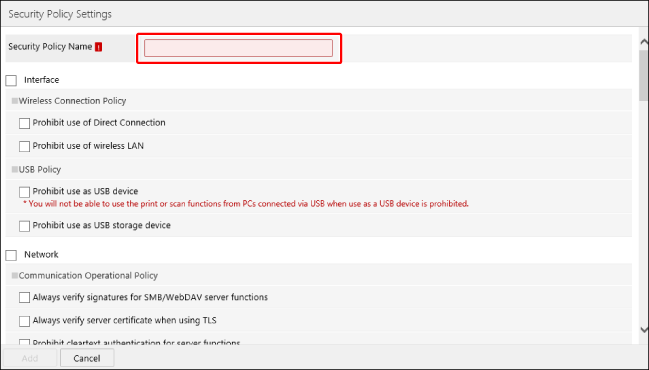
On the [Security Policy Settings] page, enter a name indicating the content of the security policy in [Security Policy Name].
4.
Select the target items for monitoring.
Some items require a setting value to be specified after selecting them.
5.
Click [Add].
Creating a Task to Monitor/Distribute Security Policies
Refer to the following settings of iW Management Console V3.x.
[Device] > [Configuration Management] > [Registered Tasks]
NOTE |
In order to distribute security policies, it is necessary to enter the administrator password for the security policy set in the printer when creating the task. Check the password in advance. You can set or change the password of security policies set in multiple printers at once.. For more information, see the following. "Changing the Password of Security Policies" in the User's Guide |
1.
Select the [Tasks] menu > [Task List].
2.
Click [Create].
3.
Select [[Security Policy] Monitor/Distribute] from the list.
4.
On the [Scheduled] tab, specify the basic information and schedule of the task.
For details on configuring the task, see the following.
"Creating Tasks" in the User's Guide
In [Name], enter a name indicating the content of the task.
Set [Active/Inactive] to [Active].
In [Select Regions], select the regions to set for the task.
For [Selected regions only], select the regions to set. Multiple regions can be set for a task.
NOTE |
[Select Regions] is displayed when regions are set. For details, see the following. "Configuring Regions" in the User's Guide |
In [Schedule Settings], set the task execution schedule.
To send the task execution history via e-mail, set the notification conditions, destination, and e-mail priority in [Mail Notification Settings].
5.
On the [Targets] tab, select the printers or device groups to set as the target for task execution.
6.
On the [Task-Specific Settings] tab, configure the security policy monitoring settings.
In [When Changes Are Detected During Monitoring], you can select the operation to perform when the security policy of a printer does not match the standard.
If you selected [Distribute the security policy and overwrite the printer settings], enter the administrator password of the security policy set in the printer in [Password].
In the [Select Security Policy for Comparison During Monitoring] list, select the security policy to use as the standard.
7.
Click [Add].
You can check the information of the registered tasks by selecting the [Tasks] menu > [Task List].
For more information, see the following.
"Managing Created Tasks" in the User's Guide
You can check the information of executing or completed tasks by selecting the [Tasks] menu > [History].
For more information, see the following.
"Checking the Task Execution Results" in the User's Guide