Checking the Task Execution Result
Check the execution results of the tasks registered for periodic execution or the built-in tasks.
1.
Select the [Tasks] menu > [History].
2.
Perform the required operations in the list on the [Task History] page.
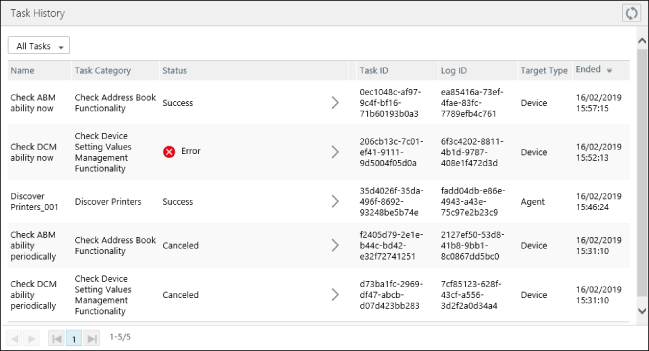
Operations Available on the Top of the List
[  ] (Refresh) ] (Refresh) | Refreshes the list with the latest information. |
Drop-down list | When [Created Tasks Only] is selected, only user-defined tasks are displayed. When [All Tasks] is selected, all tasks are selected, including built-in tasks. |
Checking the Detailed Execution History
Select the status of the target task in the list.
On the [Task Result Details] page, you can click the tab to switch the display.
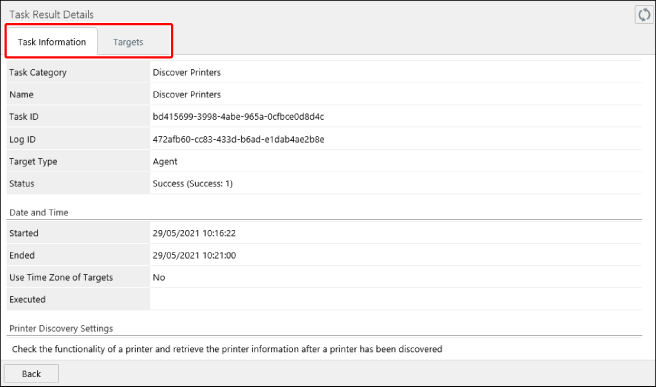
[Task Information] tab | Displays the information regarding the entire task. |
[Targets] tab | Displays the history for each target device or Agent. Click the status in the list to check the detailed execution result of each target for execution on the [Target Details] page. For a batch task, the execution result of the sub task that was last executed is displayed in [Status]. Therefore, even if 'OK' is displayed for the [Status] of a batch task, the sub task executed before the last sub task may not have ended without an error. The execution result of each sub task of a batch task is displayed in [Task List] on the [Target Details] page as indicated below. With icon [  ]: Success ]: Success[  ]: Error ]: Error[  ]: Timeout ]: Timeout[  ]: Executing ]: ExecutingWithout icon White background: Pending Gray background: Canceled |
NOTE |
If an address book distribution task or device setting value monitoring task ends with an error, check whether the [Check Address Book Functionality] and [Check Device Setting Values Management Functionality] built-in tasks have ended without an error. If [Check Address Book Functionality] and [Check Device Setting Values Management Functionality] ended with an error, distribution cannot be performed to the target devices. Confirm that the [Authentication Method] for the device is correct in the [Devices] menu > [Device Communication Settings] > [Authentication Information] tab. |