Connecting a Mobile Device Directly to the Machine (Direct Connection)
Connect a mobile device directly to the machine via Wi-Fi. You can directly connect it to the machine without using wireless LAN. You must manually connect the mobile device each time you use the machine.
By default, only one mobile device can be directly connected to the machine at any one time.
By default, only one mobile device can be directly connected to the machine at any one time.
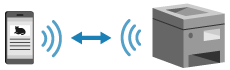
To establish a direct connection, you must use the operation panel to put the machine into waiting state and then connect it using the following method:
Manually Configuring the Wi-Fi Settings
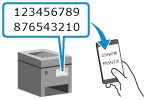 | Search for the machine on the mobile device, and enter the network key manually to connect. |
Required Preparations |
Make preparations such as enabling the Direct Connection function on the machine. Preparations for Direct Connection |
1
On the operation panel, select [Mobile Portal] in the [Home] screen, and press  . [Home] Screen
. [Home] ScreenThe [Mobile Portal] screen is displayed.
2
Select [<Connect>] and press .
.The machine enters waiting state for Direct Connection.
Within 5 minutes of pressing [<Connect>], you must directly connect the mobile device.
You can skip this step when [Connect from device you want to connect.] is displayed. Press and proceed to Step 3.
and proceed to Step 3.When [Maximum number of wireless devices connected using Direct Connection has been reached.] is displayed, you cannot connect a new mobile device until a connected mobile device is disconnected. To disconnect a connected mobile device, press [<Disconnect>]  [Yes] .
* By default, only one mobile device can be directly connected to the machine at any one time.
[Yes] .* By default, only one mobile device can be directly connected to the machine at any one time.
3
Directly connect the mobile device.
 Manually Configuring the Wi-Fi Settings
1 | Check the SSID and network key of the machine. |
2 | In the Wi-Fi settings of the mobile device, select the SSID of the machine, and enter the network key. For details about how to configure the Wi-Fi settings, see the manual of the mobile device. |
4
When [Connected.] appears on the operation panel, press [Close].
The [Mobile Portal] screen reappears.
By default, only one mobile device can be directly connected to the machine at any one time. [Maximum number of wireless devices connected using Direct Connection has been reached.] is displayed on the screen.
By default, only one mobile device can be directly connected to the machine at any one time. [Maximum number of wireless devices connected using Direct Connection has been reached.] is displayed on the screen.
5
When you have completed your operations on the mobile device, press [<Disconnect>] .
.The direct connection is terminated.
If multiple mobile devices are connected, all devices are disconnected.
If multiple mobile devices are connected, all devices are disconnected.
 |
You may not be able to connect to the Internet with Direct Connection depending on the mobile device. The power-saving effect of sleep mode decreases when using Direct Connection. The IP address of the mobile device is set automatically. If you set the IP address manually, communication using Direct Connection may not be performed correctly. |
 |
Checking a Mobile Device Connected to the MachineWhen using Direct Connection, press [Connection Info] to display the information of the mobile device connected to the machine with Direct Connection. If the Direct Connection Is Automatically DisconnectedThe direct connection is automatically terminated in the following cases: When the Direct Connection Termination is set When no data is sent or received between the mobile device and the machine for a while When the wireless LAN connection of the machine is terminated |