Customizing the [Home] Screen
You can quickly select frequently used functions from the [Home] screen of the operation panel.
You can rearrange the buttons on the [Home] screen and move buttons to other tabs.
You can rearrange the buttons on the [Home] screen and move buttons to other tabs.
This section describes how to change the display order using the operation panel.
You can also change the display order using Remote UI from a computer. You can also rename tabs using Remote UI. Rearranging the Buttons and Renaming the Tabs (Remote UI)
Administrator privileges are required.
You can also change the display order using Remote UI from a computer. You can also rename tabs using Remote UI. Rearranging the Buttons and Renaming the Tabs (Remote UI)
Administrator privileges are required.
1
Press and hold any button on the [Home] screen. [Home] Screen
If the login screen appears, enter the System Manager ID and PIN, and then press [Log In]. System Manager ID and PIN
2
Check the message, and press [Yes].
The [Rearrange and Configure Buttons] screen is displayed.
3
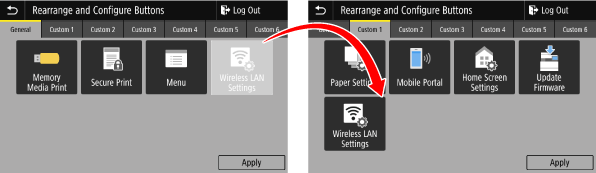
Drag the button you want to rearrange, and release it at the desired location.
When you drag a button to another tab, the button moves to that tab. You cannot move a button to a tab when the maximum number of buttons for that tab has been reached.
4
Press [Apply].
The location of the buttons on the [Home] screen is changed.